Die Legende: Total Commander auf Windows
Fragen Sie einen Power-User auf Windows nach seinem wichtigsten Werkzeug, und die Antwort lautet fast immer: Total Commander. Seit über 30 Jahren – die erste Version erschien 1993 unter dem Namen Windows Commander – ist Christian Ghislers Meisterwerk der Dual-Pane Dateimanager schlechthin. Zwei Spalten, Tabs, ein durchdachtes Tastaturkonzept, integrierte Archivhandhabung, FTP, Dateisuche mit Inhaltsfilter – Total Commander hat den Standard gesetzt, an dem sich jeder Dateimanager messen lassen muss.
Was Total Commander so besonders macht, ist nicht ein einzelnes Feature. Es ist das Zusammenspiel: Die Möglichkeit, in der linken Spalte den Quellordner zu sehen und in der rechten den Zielordner, mit F5 zu kopieren, mit F6 zu verschieben, mit F7 einen neuen Ordner zu erstellen – alles ohne die Maus zu berühren. Dieses Konzept stammt aus der DOS-Ära, vom legendären Norton Commander, und Total Commander hat es perfektioniert und in die moderne Windows-Welt übertragen.
Für Millionen von Nutzern weltweit ist Total Commander nicht einfach ein Programm. Es ist die Art, wie Dateien verwaltet werden.
Das Problem: Mac-Nutzer stehen im Regen
Dann wechselt man auf einen Mac. Man öffnet den Finder und merkt sofort: Hier fehlt alles. Der Finder ist ein einzelnes Fenster. Es gibt keine zweite Spalte. Die Tab-Unterstützung ist minimal und unhandlich. Dateioperationen per Tastatur? Versuchen Sie mal, im Finder eine Datei umzubenennen, ohne drei verschiedene Shortcuts zu lernen, die sich je nach macOS-Version ändern.
Für jemanden, der jahrelang mit Total Commander gearbeitet hat, ist der Finder ein Schock. Es fühlt sich an, als würde man von einem professionellen Werkzeugkasten zu einem einzelnen Schraubendreher wechseln. Und Total Commander selbst? Es gibt keine Mac-Version. Es gab nie eine, und es wird wahrscheinlich nie eine geben.
Also beginnt die Suche nach Alternativen.
Die Kandidaten: Mac Dateimanager im Vergleich
Im macOS-Ökosystem gibt es eine Handvoll Dual-Pane Dateimanager, die versuchen, die Lücke zu füllen. Jeder hat seine Stärken, aber auch deutliche Schwächen:
Commander One
Commander One von Eltima Software ist wohl die bekannteste Total-Commander-Alternative auf dem Mac. Er bietet Dual-Pane, Tabs und Cloud-Integration. Die Basisversion ist kostenlos, was den Einstieg erleichtert. Allerdings sind viele essenzielle Features wie FTP, Archivbrowsing oder die erweiterte Suche hinter einem Pro-Upgrade versteckt. Die Oberfläche wirkt manchmal überladen, und die Performance kann bei großen Verzeichnissen ins Stocken geraten. Es fehlen ein Undo-System für Dateioperationen, Versionskontrolle und KI-Integration.
ForkLift
ForkLift von BinaryNights ist ein solider Dateimanager mit schöner Oberfläche. Er bietet Dual-Pane, Synchronisation und Remote-Verbindungen (FTP, SFTP, WebDAV, S3). Besonders stark ist die Synchronisierungsfunktion zwischen lokalen und Remote-Verzeichnissen. Doch ForkLift fehlt echte Tab-Unterstützung pro Spalte, eine Favoriten-Leiste mit Farbkodierung, ein Rückgängig-System für Dateioperationen, integrierte Suche mit Inhaltsfilter und – natürlich – jede Form von Versionskontrolle oder KI.
Path Finder
Path Finder positioniert sich als Finder-Ersatz und nicht als Commander. Er bietet zwar ein Dual-Pane-Layout als Option, aber das Konzept ist eher ein erweiterter Finder als ein keyboard-getriebener Commander. Path Finder ist funktionsreich – Terminal-Integration, HEX-Editor, Vorschau – aber das Commander-Gefühl kommt nie richtig auf. Außerdem ist die App deutlich teurer als die meisten Alternativen und wirkt mittlerweile etwas veraltet.
muCommander
muCommander ist die Open-Source-Option: kostenlos, plattformübergreifend und mit einem klassischen Dual-Pane-Layout. Allerdings ist es in Java geschrieben, was sich sofort bemerkbar macht: Die App fühlt sich nicht wie eine native Mac-App an. Das Rendering ist pixelig, die Tastaturkürzel folgen nicht den macOS-Konventionen, und die Entwicklung ist seit Jahren eher schleppend. Für eine schnelle Lösung taugt es, aber als täglicher Begleiter nicht.
Das Dilemma: Jede dieser Alternativen deckt Teilbereiche ab. Aber keine bietet das vollständige Paket, das Total Commander auf Windows liefert – geschweige denn geht darüber hinaus. Bis jetzt.
MaiPed: Der Total Commander Nachfolger auf dem Mac
MaiPed wurde von Grund auf mit einer einzigen Vision entwickelt: Das Total-Commander-Erlebnis nativ auf den Mac zu bringen – und es dann zu übertreffen. Nicht als Java-Port, nicht als Electron-Wrapper, sondern als echte SwiftUI-App, die sich anfühlt, als gehöre sie auf jeden Mac.
Echtes Dual-Pane mit unabhängigen Tabs
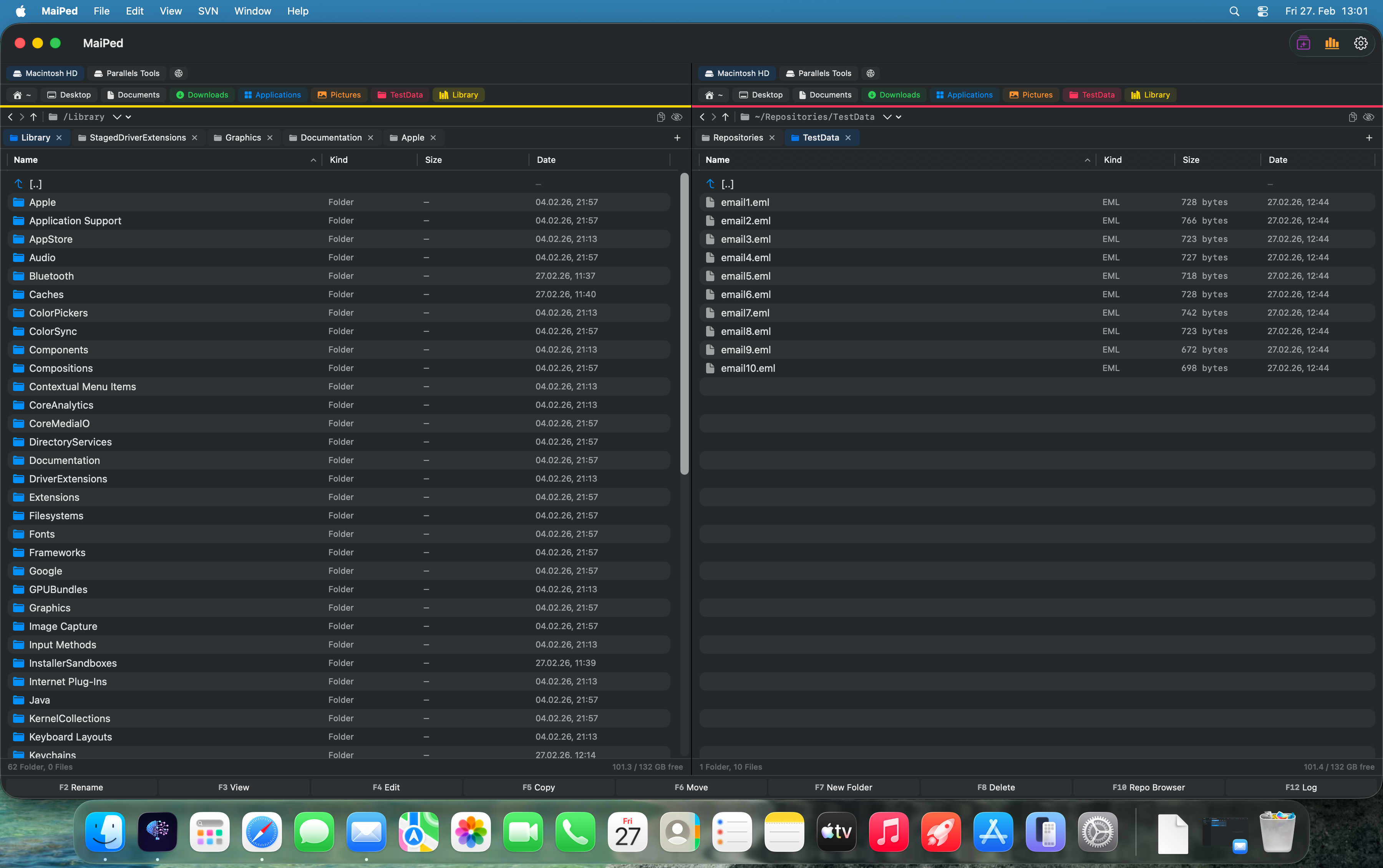
Im Kern ist MaiPed genau das, was Total Commander-Veteranen suchen: Zwei Spalten, jede mit eigenen, unabhängigen Tabs. Sie können in der linken Spalte fünf verschiedene Ordner als Tabs offen haben und in der rechten Spalte fünf weitere. Wechseln Sie frei zwischen ihnen hin und her, ohne den Kontext zu verlieren. Cmd+T öffnet einen neuen Tab, Cmd+W schließt ihn – genau wie im Browser.
Farbkodierte Favoriten-Leiste
Total Commander hat seine Ordner-Hotlist, MaiPed geht einen Schritt weiter mit einer visuellen Favoriten-Leiste. Markieren Sie häufig genutzte Ordner mit Farben – Rot für das aktive Projekt, Blau für das Backend, Grün für Konfigurationen. Ein Klick, und Sie sind da. Die Favoriten sind immer sichtbar, immer erreichbar.
Tastaturgetriebener Workflow
Wer Total Commander liebt, liebt die Tastatur. MaiPed folgt diesem Prinzip konsequent:
- Cmd+T – Neuer Tab
- Cmd+F – Dateisuche
- Cmd+K – KI-Chat öffnen
- Cmd+C / Cmd+V – Kopieren / Einfügen
- Enter – Datei öffnen oder Ordner betreten
- Delete – Datei löschen (mit Bestätigung)
- Tab – Zwischen den Spalten wechseln
Der gesamte Workflow ist darauf ausgelegt, dass Ihre Hände auf der Tastatur bleiben. Genau wie bei Total Commander.
Dateioperationen mit 20-Schritt-Undo
Ein Feature, das Total Commander selbst nicht bietet: MaiPed speichert die letzten 20 Dateioperationen und erlaubt ein vollständiges Undo. Verschieben Sie versehentlich 50 Dateien in den falschen Ordner? Cmd+Z, und alles ist rückgängig gemacht. Kopieren, Verschieben, Umbenennen, Löschen – alles ist rückgängig machbar.
Archivhandhabung: ZIP, TAR, GZ
Genau wie Total Commander behandelt MaiPed Archive nicht als undurchsichtige Dateien, sondern als navigierbare Container. Sie können in eine ZIP-Datei hineinnavigieren, den Inhalt durchstöbern, einzelne Dateien extrahieren oder neue Archive erstellen – ZIP, TAR und GZ werden vollständig unterstützt.
Integrierter FTP/FTPS-Client
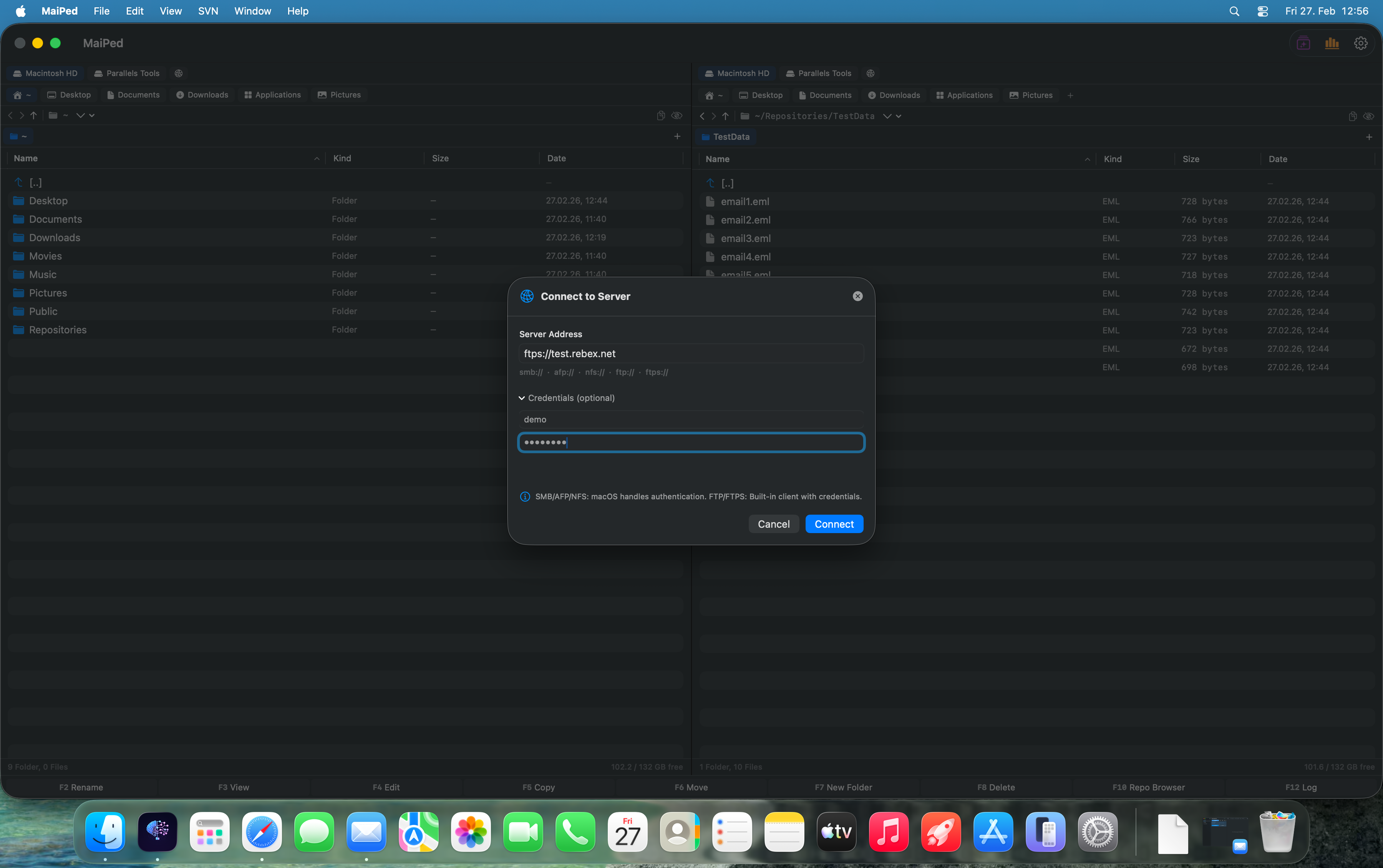
Total Commander hatte seinen FTP-Client, und MaiPed hat ebenfalls einen eingebauten FTP/FTPS-Client. Verbinden Sie sich mit Remote-Servern und arbeiten Sie mit entfernten Dateien genauso wie mit lokalen. Kein separates Programm nötig, kein Kontextwechsel.
Volume Bar mit Mount und Eject
Die Volume Bar zeigt alle eingebundenen Laufwerke und Partitionen auf einen Blick. Externe Festplatten, USB-Sticks, Netzwerklaufwerke – alles übersichtlich aufgelistet mit der Möglichkeit, Volumes direkt aus MaiPed auszuwerfen oder neue einzubinden. Ein Feature, das den macOS-Finder alt aussehen lässt.
Dateisuche: Dateinamen und Inhalte
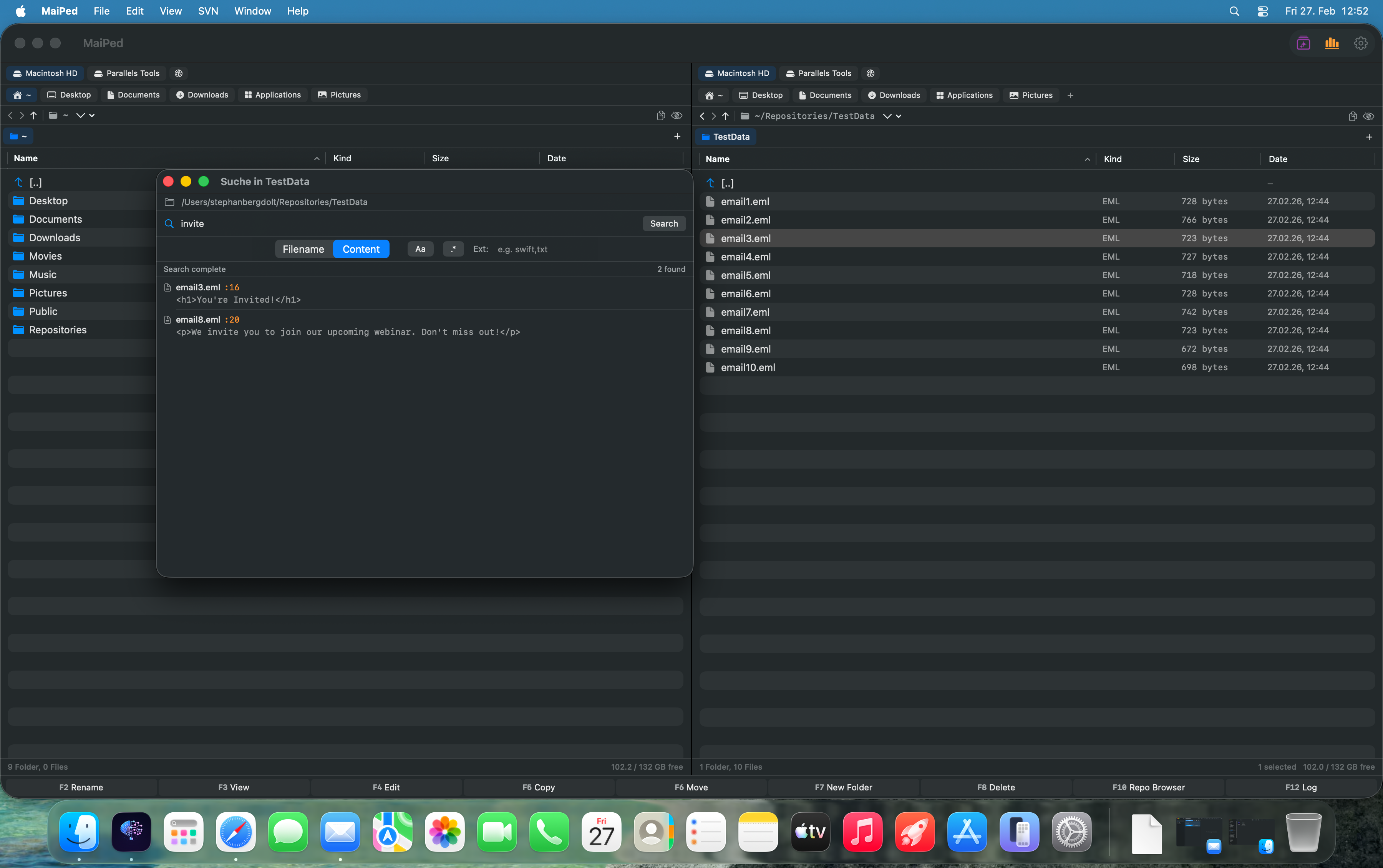
Die Suchfunktion in MaiPed geht weit über das hinaus, was der Finder bietet. Suchen Sie nach Dateinamen mit Mustern (z.B. *.swift, report_202?.*) oder durchsuchen Sie den Inhalt von Dateien – ähnlich wie grep auf der Kommandozeile, aber mit einer grafischen Oberfläche. Ergebnisse werden sofort angezeigt und können direkt geöffnet werden.
Auto-Refresh Directory Watcher
MaiPed überwacht geöffnete Verzeichnisse automatisch auf Änderungen. Wenn eine andere App Dateien erstellt, löscht oder umbenennt, aktualisiert sich die Ansicht in Echtzeit. Kein manuelles Neuladen, keine veralteten Dateianzeigen.
Was MaiPed über Total Commander hinaus bietet
Die bisherigen Features würden bereits reichen, um MaiPed als solide Total-Commander-Alternative zu bezeichnen. Aber MaiPed geht deutlich weiter – in Bereiche, die Total Commander nie betreten hat.
Vollständige SVN-Versionskontrolle
MaiPed integriert eine vollständige SVN-Versionskontrolle direkt in den Dateimanager. Commit, Update, Revert, Blame, Diff, Log, Checkout, Cleanup, Conflict Resolution – der gesamte SVN-Workflow ist eingebaut. Dateien zeigen ihren SVN-Status als farbige Overlays direkt in der Dateiliste. Für Teams, die mit SVN arbeiten, ist das ein enormer Produktivitätsgewinn.
KI-Assistentin StacyAI mit 40+ Werkzeugen

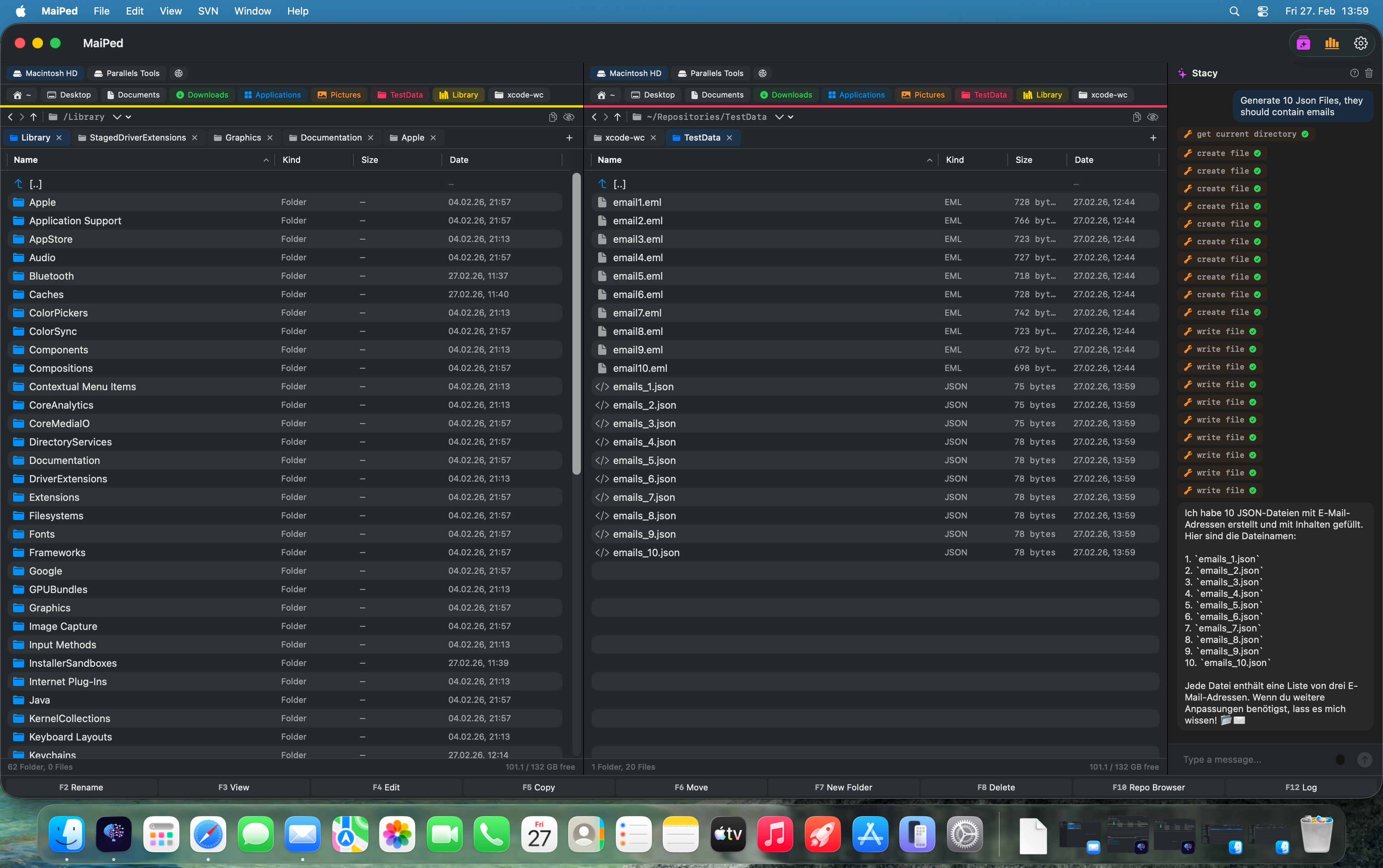
StacyAI ist die in MaiPed integrierte KI-Assistentin. Sie verfügt über über 40 spezialisierte Werkzeuge und kann per natürlichem Chat gesteuert werden. Statt sich Befehle zu merken, sagen Sie einfach:
- „Benenne alle JPEG-Dateien in diesem Ordner nach Aufnahmedatum um“
- „Erstelle eine Ordnerstruktur für ein neues Swift-Projekt“
- „Packe alle Logfiles der letzten Woche in ein ZIP-Archiv“
- „Zeige mir alle geänderten Dateien und committe sie mit einer sinnvollen Nachricht“
StacyAI versteht den Kontext, sieht Ihre Dateien und führt Aktionen direkt aus. Kein Regex, kein Terminal – natürliche Sprache reicht.
KI-Code-Reviews
Vor jedem Commit kann MaiPed eine KI-gestützte Code-Review durchführen. Die KI analysiert Ihre Änderungen in Kategorien wie Code-Qualität, Fehlerbehandlung, Performance und Dokumentation – mit einem Scoring-System von 1 bis 10. Pre-Commit-Reviews und Batch-Reviews für mehrere Dateien werden ebenfalls unterstützt.
Bildbearbeitung mit Apple Vision
Direkt in MaiPed können Sie Bilder rotieren, konvertieren (JPEG, PNG, HEIC, TIFF), PDFs erstellen und – besonders beeindruckend – Hintergründe automatisch entfernen lassen, powered by Apple Vision Framework. Kein Photoshop, kein Online-Tool, keine Uploads. Alles lokal, alles sofort.
Statistik-Dashboard
MaiPed bietet interaktive Charts zu Commits pro Autor, Code-Review-Scores, Dateiänderungen und zeitlichen Verteilungen. Ein professionelles Analyse-Werkzeug, das Einblicke in die Projektgeschichte gibt – direkt im Dateimanager.
100% Nativ: SwiftUI statt Java oder Electron
Dieser Punkt kann nicht genug betont werden: MaiPed ist eine native SwiftUI-App für macOS. Keine Java-Runtime (wie muCommander), kein Electron-Framework (wie viele moderne Apps), kein Web-View. Das bedeutet: echte macOS-Performance, echte macOS-Tastaturkürzel, echte Integration mit dem Betriebssystem. Die App startet in unter einer Sekunde, scrollt butterweich und respektiert jeden macOS-Standard.
The Legend: Total Commander on Windows
Ask any Windows power user about their most essential tool, and the answer is almost always: Total Commander. For over 30 years – the first version appeared in 1993 under the name Windows Commander – Christian Ghisler's masterpiece has been the definitive dual-pane file manager. Two panes, tabs, a thoughtful keyboard concept, integrated archive handling, FTP, file search with content filtering – Total Commander set the standard against which every file manager is measured.
What makes Total Commander special isn't a single feature. It's the synergy: the ability to see the source folder in the left pane and the target in the right, press F5 to copy, F6 to move, F7 to create a new folder – all without touching the mouse. This concept originated in the DOS era with the legendary Norton Commander, and Total Commander perfected it and carried it into the modern Windows world.
For millions of users worldwide, Total Commander isn't just a program. It's the way files are managed.
The Problem: Mac Users Are Left in the Cold
Then you switch to a Mac. You open Finder and immediately realize: everything is missing. Finder is a single window. There is no second pane. Tab support is minimal and clunky. File operations via keyboard? Try renaming a file in Finder without learning three different shortcuts that change with each macOS version.
For someone who has worked with Total Commander for years, Finder is a shock. It feels like switching from a professional toolbox to a single screwdriver. And Total Commander itself? There is no Mac version. There never was, and there probably never will be.
So the search for alternatives begins.
The Candidates: Mac File Managers Compared
In the macOS ecosystem, there are a handful of dual-pane file managers that try to fill the gap. Each has strengths, but also significant weaknesses:
Commander One
Commander One by Eltima Software is probably the most well-known Total Commander alternative on Mac. It offers dual-pane, tabs, and cloud integration. The base version is free, which lowers the entry barrier. However, many essential features like FTP, archive browsing, or advanced search are locked behind a Pro upgrade. The interface sometimes feels cluttered, and performance can stutter with large directories. It lacks an undo system for file operations, version control, and AI integration.
ForkLift
ForkLift by BinaryNights is a solid file manager with a beautiful interface. It offers dual-pane, synchronization, and remote connections (FTP, SFTP, WebDAV, S3). Its sync functionality between local and remote directories is particularly strong. However, ForkLift lacks true per-pane tab support, a color-coded favorites bar, an undo system for file operations, integrated content search, and – naturally – any form of version control or AI.
Path Finder
Path Finder positions itself as a Finder replacement rather than a Commander. While it offers a dual-pane layout as an option, the concept is more of an enhanced Finder than a keyboard-driven commander. Path Finder is feature-rich – terminal integration, HEX editor, preview – but the Commander feel never quite materializes. Additionally, the app is significantly more expensive than most alternatives and feels somewhat dated by now.
muCommander
muCommander is the open-source option: free, cross-platform, and with a classic dual-pane layout. However, it is written in Java, which is immediately noticeable: the app doesn't feel like a native Mac application. Rendering is pixelated, keyboard shortcuts don't follow macOS conventions, and development has been sluggish for years. It works as a quick solution, but not as a daily companion.
The dilemma: Each of these alternatives covers some aspects. But none offers the complete package that Total Commander delivers on Windows – let alone goes beyond it. Until now.
MaiPed: The Total Commander Successor on Mac
MaiPed was built from the ground up with a single vision: to bring the Total Commander experience natively to the Mac – and then surpass it. Not as a Java port, not as an Electron wrapper, but as a true SwiftUI app that feels like it belongs on every Mac.
True Dual-Pane with Independent Tabs
At its core, MaiPed is exactly what Total Commander veterans are looking for: two panes, each with their own independent tabs. You can have five different folders open as tabs in the left pane and five more in the right. Switch freely between them without losing context. Cmd+T opens a new tab, Cmd+W closes it – just like in your browser.
Color-Coded Favorites Bar
Total Commander has its folder hotlist, but MaiPed goes a step further with a visual favorites bar. Mark frequently used folders with colors – red for the active project, blue for the backend, green for configurations. One click, and you're there. Favorites are always visible, always accessible.
Keyboard-Driven Workflow
If you love Total Commander, you love the keyboard. MaiPed follows this principle consistently:
- Cmd+T – New tab
- Cmd+F – File search
- Cmd+K – Open AI chat
- Cmd+C / Cmd+V – Copy / Paste
- Enter – Open file or enter folder
- Delete – Delete file (with confirmation)
- Tab – Switch between panes
The entire workflow is designed so your hands stay on the keyboard. Just like Total Commander.
File Operations with 20-Step Undo
A feature that even Total Commander itself doesn't offer: MaiPed stores the last 20 file operations and allows full undo. Accidentally moved 50 files to the wrong folder? Cmd+Z, and everything is reversed. Copy, move, rename, delete – everything is undoable.
Archive Handling: ZIP, TAR, GZ
Just like Total Commander, MaiPed doesn't treat archives as opaque files but as navigable containers. You can browse into a ZIP file, explore its contents, extract individual files, or create new archives – ZIP, TAR, and GZ are fully supported.
Built-in FTP/FTPS Client
Total Commander had its FTP client, and MaiPed also has a built-in FTP/FTPS client. Connect to remote servers and work with remote files just as you would with local ones. No separate application needed, no context switching.
Volume Bar with Mount and Eject
The volume bar shows all mounted drives and partitions at a glance. External hard drives, USB sticks, network shares – everything listed clearly with the ability to eject volumes directly from MaiPed or mount new ones. A feature that makes macOS Finder look outdated.
File Search: Filenames and Content
MaiPed's search functionality goes far beyond what Finder offers. Search by filename patterns (e.g., *.swift, report_202?.*) or search through file content – similar to grep on the command line, but with a graphical interface. Results appear instantly and can be opened directly.
Auto-Refresh Directory Watcher
MaiPed automatically monitors open directories for changes. When another app creates, deletes, or renames files, the view updates in real time. No manual refresh, no stale file listings.
What MaiPed Does Beyond Total Commander
The features described so far would already qualify MaiPed as a solid Total Commander alternative. But MaiPed goes significantly further – into areas that Total Commander never entered.
Full SVN Version Control Integration
MaiPed integrates complete SVN version control directly into the file manager. Commit, Update, Revert, Blame, Diff, Log, Checkout, Cleanup, Conflict Resolution – the entire SVN workflow is built in. Files display their SVN status as colored overlays directly in the file list. For teams working with SVN, this is an enormous productivity boost.
AI Assistant StacyAI with 40+ Tools
StacyAI is MaiPed's integrated AI assistant. She has over 40 specialized tools and can be controlled through natural language chat. Instead of memorizing commands, just say:
- "Rename all JPEG files in this folder by their capture date"
- "Create a folder structure for a new Swift project"
- "Pack all log files from the last week into a ZIP archive"
- "Show me all changed files and commit them with a meaningful message"
StacyAI understands the context, sees your files, and executes actions directly. No regex, no terminal – natural language is all it takes.
AI Code Reviews
Before every commit, MaiPed can run an AI-powered code review. The AI analyzes your changes across categories like code quality, error handling, performance, and documentation – with a scoring system from 1 to 10. Pre-commit reviews and batch reviews for multiple files are also supported.
Image Editing with Apple Vision
Right in MaiPed, you can rotate images, convert them (JPEG, PNG, HEIC, TIFF), create PDFs, and – most impressively – automatically remove backgrounds, powered by the Apple Vision framework. No Photoshop, no online tools, no uploads. Everything local, everything instant.
Statistics Dashboard
MaiPed offers interactive charts showing commits per author, code review scores, file changes, and time distributions. A professional analytics tool that provides insights into project history – directly in the file manager.
100% Native: SwiftUI, Not Java or Electron
This point cannot be emphasized enough: MaiPed is a native SwiftUI application for macOS. No Java runtime (like muCommander), no Electron framework (like many modern apps), no web views. This means: real macOS performance, real macOS keyboard shortcuts, real integration with the operating system. The app launches in under a second, scrolls buttery smooth, and respects every macOS convention.
Feature-Vergleich: Total Commander vs. Commander One vs. MaiPed
Feature Comparison: Total Commander vs. Commander One vs. MaiPed
| Feature | Total Commander (Windows) |
Commander One (Mac) |
MaiPed (Mac) |
|---|---|---|---|
| Dual-Pane Layout | ✓ | ✓ | ✓ |
| Unabhängige Tabs pro Spalte | ✓ | ✓ | ✓ |
| Farbkodierte Favoriten | ✕ | ✕ | ✓ |
| Tastaturkürzel | ✓ | ✓ | ✓ |
| Undo Dateioperationen | ✕ | ✕ | ✓ 20 Schritte |
| Archivhandhabung (ZIP/TAR/GZ) | ✓ | ● Pro | ✓ |
| Inline-ZIP-Browsing | ✓ | ● Pro | ✓ |
| FTP/FTPS | ✓ | ● Pro | ✓ |
| Inhaltssuche (grep) | ✓ | ● Pro | ✓ |
| Volume Bar / Eject | ● Teilweise | ✕ | ✓ |
| Auto-Refresh Verzeichnis | ✓ | ✓ | ✓ |
| Datei-Berechtigungen Editor | ✕ | ✕ | ✓ |
| SVN Versionskontrolle | ✕ | ✕ | ✓ Vollständig |
| KI-Assistent (Chat + Tools) | ✕ | ✕ | ✓ 40+ Tools |
| KI-Code-Reviews | ✕ | ✕ | ✓ |
| Bildbearbeitung / Hintergrund entfernen | ✕ | ✕ | ✓ Apple Vision |
| Statistik-Dashboard | ✕ | ✕ | ✓ |
| 100% Nativ (kein Java/Electron) | ✓ Win32 | ✓ | ✓ SwiftUI |
| macOS-Unterstützung | ✕ | ✓ | ✓ |
| Filter Bar | ✓ | ✓ | ✓ |
| Feature | Total Commander (Windows) |
Commander One (Mac) |
MaiPed (Mac) |
|---|---|---|---|
| Dual-Pane Layout | ✓ | ✓ | ✓ |
| Independent Tabs Per Pane | ✓ | ✓ | ✓ |
| Color-Coded Favorites | ✕ | ✕ | ✓ |
| Keyboard Shortcuts | ✓ | ✓ | ✓ |
| Undo File Operations | ✕ | ✕ | ✓ 20 Steps |
| Archive Handling (ZIP/TAR/GZ) | ✓ | ● Pro | ✓ |
| Inline ZIP Browsing | ✓ | ● Pro | ✓ |
| FTP/FTPS | ✓ | ● Pro | ✓ |
| Content Search (grep) | ✓ | ● Pro | ✓ |
| Volume Bar / Eject | ● Partial | ✕ | ✓ |
| Auto-Refresh Directory | ✓ | ✓ | ✓ |
| File Permissions Editor | ✕ | ✕ | ✓ |
| SVN Version Control | ✕ | ✕ | ✓ Full |
| AI Assistant (Chat + Tools) | ✕ | ✕ | ✓ 40+ Tools |
| AI Code Reviews | ✕ | ✕ | ✓ |
| Image Editing / Background Removal | ✕ | ✕ | ✓ Apple Vision |
| Statistics Dashboard | ✕ | ✕ | ✓ |
| 100% Native (No Java/Electron) | ✓ Win32 | ✓ | ✓ SwiftUI |
| macOS Support | ✕ | ✓ | ✓ |
| Filter Bar | ✓ | ✓ | ✓ |
Fazit: Der Commander, auf den Mac-Nutzer gewartet haben
Total Commander wird nie auf den Mac kommen. Aber das muss es auch nicht mehr. MaiPed bringt alles mit, was Total Commander legendär gemacht hat – echtes Dual-Pane, unabhängige Tabs, tastaturgetriebenen Workflow, Archivhandhabung, FTP, leistungsstarke Dateisuche – und erweitert das Konzept um Funktionen, die in der heutigen Arbeitswelt unerlässlich sind: SVN-Versionskontrolle, KI-Assistenz, intelligente Code-Reviews und Bildbearbeitung.
Der entscheidende Unterschied zu allen anderen Mac-Alternativen: MaiPed ist keine Java-App, die auf dem Mac läuft. Es ist keine Electron-App, die einen Browser verkleidet. MaiPed ist eine echte, native SwiftUI-Anwendung, die sich anfühlt, scrollt und reagiert wie eine Mac-App – weil sie eine ist.
Wenn Sie von Windows kommen und Total Commander vermissen, wenn Sie von Commander One oder ForkLift enttäuscht sind, oder wenn Sie einfach einen Dateimanager suchen, der mehr kann als der Finder – dann ist MaiPed die Antwort.
Conclusion: The Commander Mac Users Have Been Waiting For
Total Commander will never come to Mac. But it doesn't need to anymore. MaiPed brings everything that made Total Commander legendary – true dual-pane, independent tabs, keyboard-driven workflow, archive handling, FTP, powerful file search – and extends the concept with features essential in today's work environment: SVN version control, AI assistance, intelligent code reviews, and image editing.
The crucial difference from all other Mac alternatives: MaiPed is not a Java app running on Mac. It's not an Electron app disguising a browser. MaiPed is a genuine, native SwiftUI application that feels, scrolls, and responds like a Mac app – because it is one.
If you're coming from Windows and miss Total Commander, if you're disappointed by Commander One or ForkLift, or if you simply want a file manager that does more than Finder – MaiPed is the answer.
Bereit für den besten Commander auf dem Mac? Ready for the best Commander on Mac?
MaiPed kommt bald in den Mac App Store. Dual-Pane, Tabs, SVN, KI – alles in einer nativen App. MaiPed is coming soon to the Mac App Store. Dual-pane, tabs, SVN, AI – all in one native app.