Wenn du als Entwickler auf einem Mac mit Apple Silicon arbeitest und SVN brauchst, kennst du das Problem: Es funktioniert einfach nicht mehr so, wie es sollte. Was früher mit einem simplen svn checkout im Terminal erledigt war, ist heute ein Hindernislauf aus fehlenden Binaries, kaputten Libraries und veralteten Workarounds. Dieser Artikel fasst die aktuelle Situation zusammen und zeigt, welche Lösungen wirklich funktionieren – und welche nicht.
Das Ende einer Ära: Apple entfernt SVN
Jahrelang war Subversion fester Bestandteil von macOS. Wer die Xcode Command Line Tools installierte, bekam automatisch ein funktionierendes svn-Binary. Für viele Entwickler war das die einzige SVN-Installation, die sie jemals brauchten. Doch Apple hat SVN schrittweise aus seinen Tools entfernt.
Bereits mit Xcode 12 wurde die mitgelieferte SVN-Version nicht mehr aktualisiert und blieb bei Version 1.10 stehen, während die Community längst bei 1.14 war. Mit neueren Versionen der Command Line Tools hat Apple SVN dann komplett gestrichen. Wer heute auf einem frischen Mac svn --version eingibt, bekommt nur noch eine Fehlermeldung.
Für Git-Nutzer ist das irrelevant – Git wird weiterhin gepflegt und ausgeliefert. Aber für die vielen Teams in Unternehmen, Agenturen und Behörden, die SVN seit Jahren produktiv einsetzen, bedeutet das: Die einfachste Installationsmethode ist verschwunden.
SVN ist nicht tot – es wird nach wie vor aktiv weiterentwickelt und von Millionen von Entwicklern weltweit eingesetzt. Apple hat lediglich aufgehört, es auszuliefern.
Homebrew: Der naheliegende Weg – und seine Tücken
Die erste Reaktion der meisten Entwickler: brew install subversion. Klingt einfach, ist es aber leider nicht immer. Homebrew auf Apple Silicon bringt eine ganze Reihe von Problemen mit sich, die speziell SVN betreffen.
Das Dependency-Problem
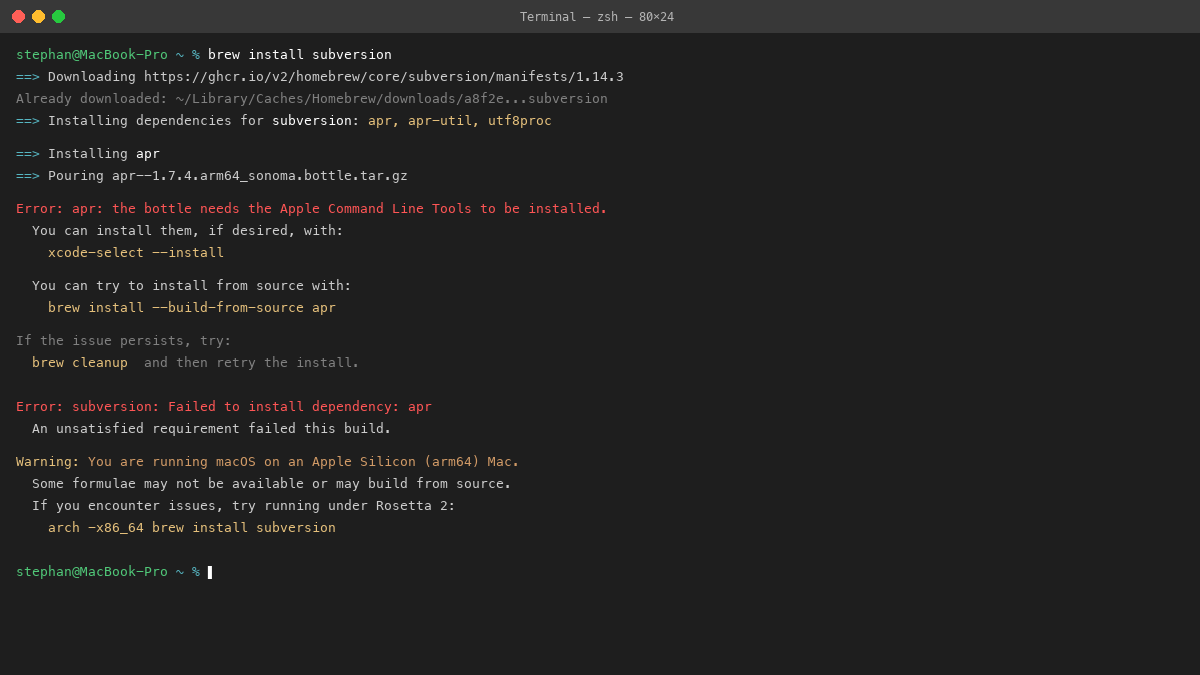
SVN über Homebrew hat eine beachtliche Abhängigkeitskette. Die Formel hängt unter anderem von apr, apr-util, swig, utf8proc, lz4 und openssl ab. Jede dieser Libraries muss für ARM64 kompiliert sein und zum richtigen Zeitpunkt in der richtigen Version vorliegen. In der Praxis führt das regelmäßig zu Problemen:
- Nach einem
brew upgradekann es passieren, dassopensslaktualisiert wird, die SVN-Binary aber noch gegen die alte Version gelinkt ist. Das Ergebnis:dyld: Library not loadedbeim Aufruf vonsvn. - Wenn mehrere Homebrew-Formeln verschiedene Versionen derselben Library benötigen, entstehen Konflikte, die sich nur schwer auflösen lassen.
- Die Kompilierung von
swig(benötigt für Perl/Python/Ruby-Bindings) schlägt auf manchen Systemen fehl und blockiert das gesamte SVN-Update.
Kaputte Dynamic Libraries (dylibs)
Das häufigste Problem mit Homebrew-SVN auf Apple Silicon sind fehlerhafte dylib-Referenzen. SVN wird dynamisch gegen zahlreiche Shared Libraries gelinkt. Wenn sich der Pfad oder die Version einer dieser Libraries ändert – und das passiert bei Homebrew öfter, als man denkt – startet svn nicht mehr.
Typische Fehlermeldungen sehen so aus:
dyld[12345]: Library not loaded: /opt/homebrew/opt/openssl@3/lib/libssl.3.dylib
  Referenced from: /opt/homebrew/bin/svn
  Reason: tried: '/opt/homebrew/opt/openssl@3/lib/libssl.3.dylib' (no such file)
Die Lösung ist dann meistens ein brew reinstall subversion, was wiederum die gesamte Abhängigkeitskette neu kompiliert und mehrere Minuten dauern kann. Und beim nächsten brew upgrade kann das gleiche Problem erneut auftreten.
Der Zeitfaktor
SVN über Homebrew zu installieren oder zu aktualisieren kann auf Apple Silicon zwischen 5 und 20 Minuten dauern, weil alles aus dem Quellcode kompiliert wird. Auf einem M1 MacBook Air mit 8 GB RAM kann die Kompilierung von swig allein mehrere Minuten in Anspruch nehmen. Für ein Versionskontroll-Tool, das man einfach nur benutzen möchte, ist das frustrierend.
Xcode Command Line Tools: Veraltet und entfernt
Wie bereits erwähnt, hat Apple SVN aus den Xcode Command Line Tools entfernt. Aber auch in der Zeit, als es noch enthalten war, war die mitgelieferte Version problematisch:
- Die letzte von Apple ausgelieferte Version war SVN 1.10, die bereits mehrere Jahre alt und ohne wichtige Bugfixes und Performance-Verbesserungen war.
- Es gab keine Möglichkeit, die Version zu aktualisieren, ohne auf Homebrew oder eine manuelle Installation umzusteigen.
- Die Binary war ein Universal Binary, lief also über Rosetta 2 auf Apple Silicon – mit entsprechenden Performance-Einbußen.
Wer sich auf Apples SVN verlassen hat, stand plötzlich ohne funktionierende Installation da – oft mitten in einem laufenden Projekt.
Rosetta 2: Ein Workaround mit Kosten
Manche Entwickler weichen auf Intel-basierte SVN-Binaries aus und lassen diese über Rosetta 2 laufen. Das funktioniert technisch, bringt aber spürbare Nachteile mit sich:
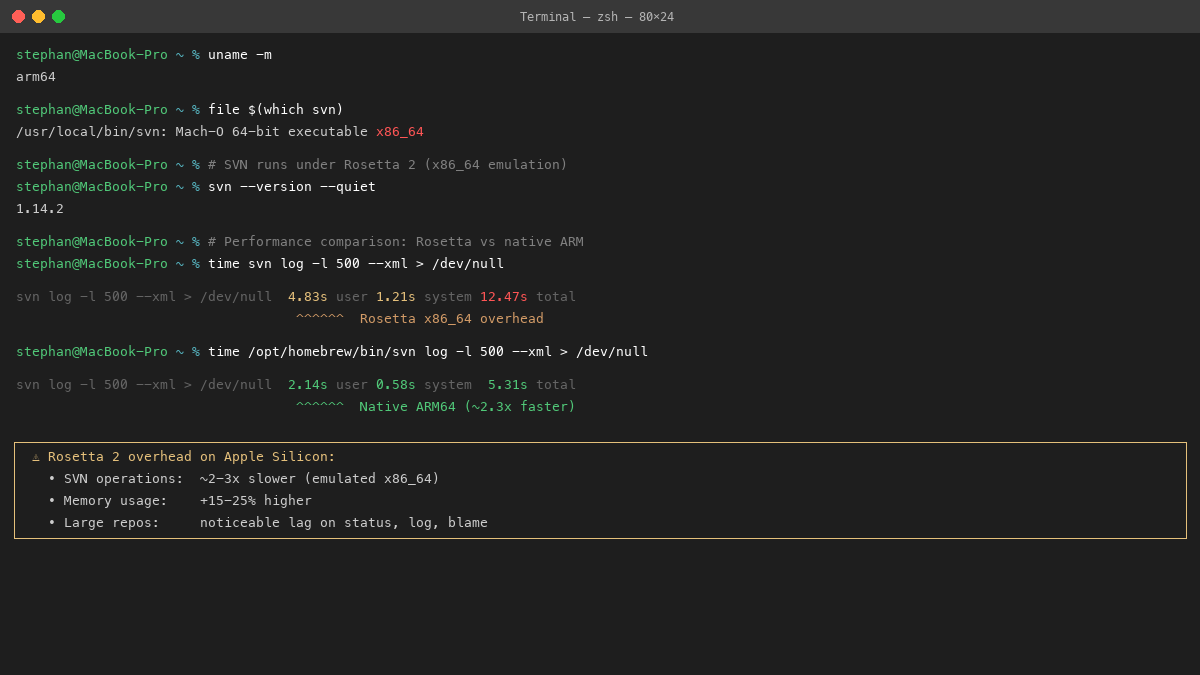
- Performance: Rosetta 2 übersetzt x86_64-Instruktionen in Echtzeit. Für einzelne SVN-Befehle mag das akzeptabel sein, aber bei großen Operationen wie einem Checkout eines umfangreichen Repositories oder einem
svn statusüber zehntausende Dateien summiert sich der Overhead deutlich. - Speicherverbrauch: Die Rosetta-Übersetzungsschicht verbraucht zusätzlichen Arbeitsspeicher. Auf Macs mit 8 GB RAM kann das spürbar werden, besonders wenn parallel andere Entwicklungstools laufen.
- Zukunftssicherheit: Apple hat zwar keine offizielle Abkündigung von Rosetta 2 angekündigt, aber die klare Richtung ist ARM64-native Software. Es ist nur eine Frage der Zeit, bis Rosetta 2 eingestellt oder eingeschränkt wird.
- Doppelte Homebrew-Installation: Um Intel-Binaries über Homebrew zu installieren, braucht man eine separate Homebrew-Installation unter
/usr/local(Intel-Pfad), zusätzlich zur nativen unter/opt/homebrew. Das führt zu Verwirrung und Wartungsaufwand.
SVN-Clients für macOS: Was gibt es noch?
Neben der Kommandozeile gibt es eine Reihe von grafischen SVN-Clients für macOS. Die Situation ist allerdings ernüchternd:
SmartSVN
SmartSVN von Syntevo ist einer der letzten aktiv gepflegten grafischen SVN-Clients für macOS. Er ist funktionsreich und zuverlässig, hat aber einige Nachteile: Er ist eine Java-Anwendung, fühlt sich also nicht wie eine native Mac-App an. Die Lizenzkosten für die Professional-Version sind erheblich. Außerdem ist SmartSVN ein reiner SVN-Client – es ist kein Dateimanager, was bedeutet, dass man ständig zwischen Finder/Commander und SmartSVN hin und her wechseln muss.
Versions
Versions von Blackpixel war jahrelang der beliebteste SVN-Client auf dem Mac. Leider wurde die Entwicklung eingestellt. Die letzte Version läuft zwar noch unter Rosetta 2, ist aber nicht für Apple Silicon optimiert und erhält keine Updates mehr. Features wie der Merge-Support waren nie vollständig implementiert. Wer Versions noch nutzt, arbeitet im Grunde mit Auslaufware.
Cornerstone
Cornerstone, einst ein solider SVN-Client, wurde ebenfalls nicht mehr weiterentwickelt. Die Website ist nicht mehr erreichbar, und die App funktioniert auf aktuellen macOS-Versionen nicht mehr zuverlässig.
svnX
svnX ist ein kostenloses Open-Source-Tool, das jedoch seit Jahren kein Update mehr erhalten hat. Die Oberfläche wirkt veraltet, und die Kompatibilität mit neueren macOS-Versionen ist nicht gewährleistet.
Das Grundproblem aller SVN-Clients
Fast alle genannten Clients setzen voraus, dass SVN auf dem System installiert ist – entweder über Homebrew, die Command Line Tools oder eine manuelle Installation. Sie liefern also keine eigene SVN-Binary mit. Das bedeutet: Selbst wenn der Client gut funktioniert, steht man vor den gleichen Installationsproblemen.
Das Kernproblem zusammengefasst
SVN auf Apple Silicon im Jahr 2026 bedeutet: Apple liefert es nicht mehr aus, Homebrew ist fragil, Rosetta kostet Performance, und die meisten grafischen Clients sind veraltet oder eingestellt. Es gibt keine einfache, zuverlässige Lösung – bis jetzt.
Wie MaiPed das Problem löst
MaiPed geht einen radikal anderen Weg: Die App liefert native ARM64 SVN-Binaries direkt mit – gebundelt im App-Bundle, mit allen Abhängigkeiten. Kein Homebrew, kein Terminal, keine Installation. Die App herunterladen, öffnen, und SVN funktioniert.
Native ARM64 Binaries
MaiPed enthält vorkompilierte SVN-Binaries, die nativ auf Apple Silicon laufen. Keine Rosetta-Übersetzung, keine Emulation – reiner ARM64-Code, der direkt auf dem M1/M2/M3/M4-Prozessor ausgeführt wird. Das bedeutet maximale Performance bei minimalem Ressourcenverbrauch.
Alle dynamischen Libraries (dylibs), die SVN benötigt, sind ebenfalls im App-Bundle enthalten. Die Pfade sind mit @loader_path-Referenzen umgeschrieben, sodass keine Abhängigkeit zu Homebrew, /usr/lib oder anderen externen Pfaden besteht. Ein brew upgrade kann MaiPed nichts anhaben – die SVN-Installation ist vollständig gekapselt.
Null Konfiguration
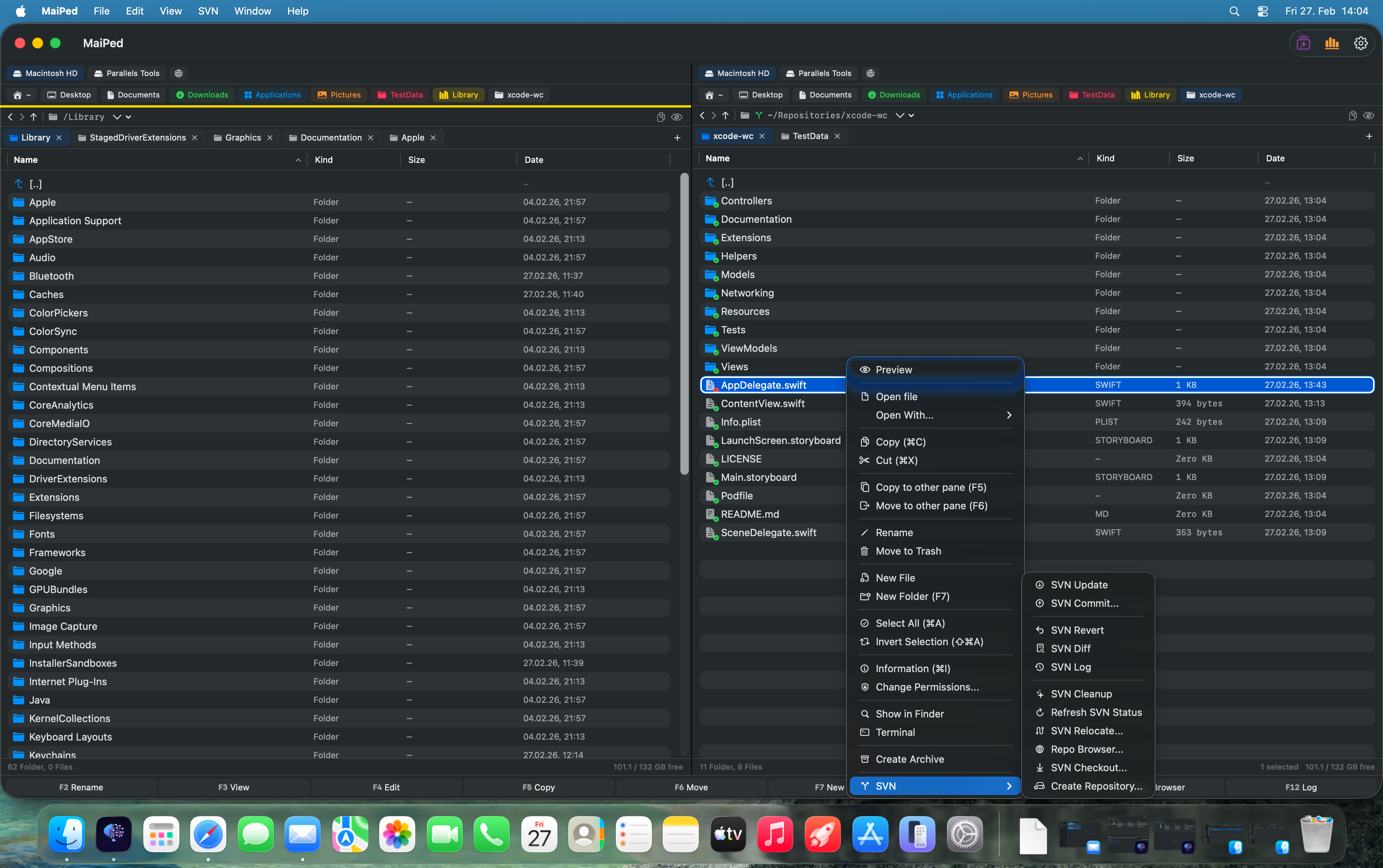
Mit MaiPed gibt es keinen Installationsprozess für SVN. Es gibt kein Terminal, das geöffnet werden muss. Es gibt keine PATH-Variable, die angepasst werden muss. Es gibt kein brew install, kein xcode-select --install, kein Warten auf Kompilierung. Die App funktioniert out-of-the-box.
Für Teams bedeutet das: Jeder Entwickler kann sofort mit SVN arbeiten, unabhängig davon, wie sein Mac konfiguriert ist. Kein IT-Support nötig, kein Onboarding-Aufwand für die SVN-Installation.
Der komplette SVN-Workflow
MaiPed ist nicht nur ein SVN-Wrapper – es ist ein vollständiger SVN-Client, integriert in einen Dual-Pane-Dateimanager. Alle wichtigen SVN-Operationen sind direkt verfügbar:
- Commit – Änderungen einchecken mit detaillierten Commit-Nachrichten und optionalem KI-Review vor dem Commit
- Update – Working Copy auf den neuesten Stand bringen, mit Anzeige aller geänderten Dateien
- Revert – Änderungen rückgängig machen, einzelne Dateien oder komplette Verzeichnisse
- Blame/Annotate – Zeilenweise Zuordnung zu Autoren mit Revisionsnummern und Daten
- Diff – Visuelle Unterschiede zwischen Revisionen oder zwischen Working Copy und Repository
- Log – Komplette Revisionshistorie mit Suchfunktion, Filterung nach Autor und Datum
- Checkout – Repositories auschecken über eine grafische Oberfläche, mit Authentifizierung und Pfadauswahl
- Cleanup – Kaputte Working Copies reparieren, Locks entfernen, nicht versionierte Dateien aufräumen
- Conflict Resolution – Konflikte erkennen, anzeigen und lösen mit visueller Unterstützung
- Repo Browser – Remote-Repositories durchsuchen, ohne sie vorher auschecken zu müssen
SVN-Status direkt im Dateimanager
Der größte Vorteil gegenüber einem separaten SVN-Client: MaiPed zeigt den SVN-Status jeder Datei direkt im Dateimanager an. Geänderte Dateien sind mit einem M markiert, neue Dateien mit A, gelöschte mit D, Konflikte mit C. Auf einen Blick siehst du, was sich geändert hat, ohne einen separaten Client öffnen oder ein Terminal-Kommando eingeben zu müssen.
Performance auf Apple Silicon
Da MaiPed native ARM64-Binaries verwendet, profitiert es voll von der Performance der Apple Silicon Prozessoren. SVN-Operationen werden direkt auf dem Chip ausgeführt, ohne Rosetta-Overhead. Das macht sich besonders bei großen Repositories bemerkbar:
svn statusüber zehntausende Dateien läuft spürbar schneller als über Rosetta.- Die XML-Ausgabe wird nativ verarbeitet, was die Anzeige der Ergebnisse beschleunigt.
- Der Speicherverbrauch ist geringer, da keine Übersetzungsschicht benötigt wird.
- Die Integration mit dem nativen SwiftUI-Interface sorgt für eine flüssige Darstellung ohne Latenz.
Mehr als SVN: KI-gestützte Code Reviews
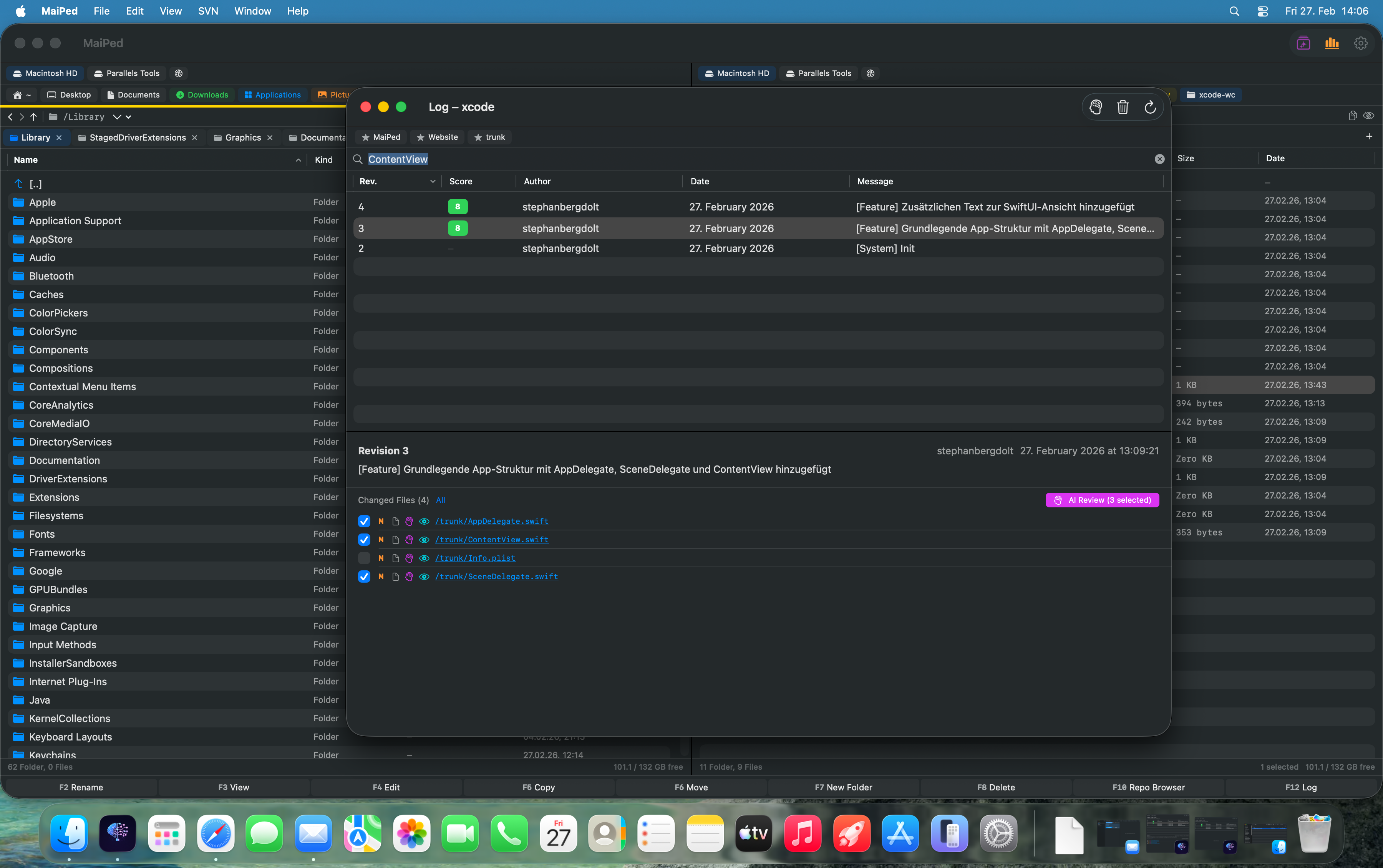
MaiPed geht über einen reinen SVN-Client hinaus. Die integrierte KI-Assistentin StacyAI kann Code Reviews durchführen – automatisch vor dem Commit oder auf Anfrage. Die KI bewertet Code in Kategorien wie Qualität, Fehlerbehandlung, Performance und Dokumentation und liefert konkrete Verbesserungsvorschläge.
Besonders praktisch: Die KI kann Commit-Nachrichten automatisch aus den Diffs generieren. Statt selbst zu formulieren, was geändert wurde, lässt man die KI eine präzise Zusammenfassung erstellen. Das spart Zeit und sorgt für konsistente, aussagekräftige Commit-Nachrichten.
Für maximale Privatsphäre können lokale KI-Modelle über Ollama oder LM Studio verwendet werden. Dann verlässt kein einziges Byte den eigenen Rechner.
Fazit: SVN auf Apple Silicon muss nicht kompliziert sein
Die aktuelle Situation von SVN auf macOS mit Apple Silicon ist zweifellos unbefriedigend. Apple hat sich von SVN verabschiedet, Homebrew ist keine zuverlässige Lösung, Rosetta kostet Performance, und die meisten grafischen Clients sind veraltet oder eingestellt.
MaiPed löst dieses Problem grundlegend, indem es native ARM64 SVN-Binaries direkt im App-Bundle mitliefert. Keine Installation, keine Konfiguration, keine Abhängigkeiten. Dazu kommt ein vollständiger SVN-Workflow, integriert in einen modernen Dual-Pane-Dateimanager mit KI-Unterstützung.
Für Teams und Einzelentwickler, die SVN auf Apple Silicon zuverlässig nutzen möchten, ist das die einfachste Lösung, die es derzeit gibt.
If you are a developer working on a Mac with Apple Silicon and you need SVN, you know the problem: it just does not work the way it used to. What was once a simple svn checkout in the terminal has become an obstacle course of missing binaries, broken libraries, and outdated workarounds. This article summarizes the current situation and shows which solutions actually work – and which do not.
The End of an Era: Apple Removes SVN
For years, Subversion was a standard part of macOS. Installing the Xcode Command Line Tools automatically gave you a working svn binary. For many developers, this was the only SVN installation they ever needed. But Apple has gradually removed SVN from its tools.
Starting with Xcode 12, the bundled SVN version was no longer updated and remained stuck at version 1.10, while the community had long moved on to 1.14. With newer versions of the Command Line Tools, Apple removed SVN entirely. If you type svn --version on a fresh Mac today, you will only get an error message.
For Git users, this is irrelevant – Git is still maintained and shipped. But for the many teams in enterprises, agencies, and government organizations that have been using SVN productively for years, it means the simplest installation method has disappeared.
SVN is not dead – it continues to be actively developed and used by millions of developers worldwide. Apple has simply stopped shipping it.
Homebrew: The Obvious Path – and Its Pitfalls
The first reaction of most developers: brew install subversion. Sounds simple, but unfortunately it is not always straightforward. Homebrew on Apple Silicon brings a whole range of problems that specifically affect SVN.
The Dependency Problem
SVN via Homebrew has a substantial dependency chain. The formula depends on apr, apr-util, swig, utf8proc, lz4, and openssl, among others. Each of these libraries must be compiled for ARM64 and available in the right version at the right time. In practice, this regularly leads to problems:
- After a
brew upgrade, it can happen thatopensslis updated but the SVN binary is still linked against the old version. The result:dyld: Library not loadedwhen callingsvn. - When multiple Homebrew formulas require different versions of the same library, conflicts arise that are difficult to resolve.
- The compilation of
swig(needed for Perl/Python/Ruby bindings) fails on some systems and blocks the entire SVN update.
Broken Dynamic Libraries (dylibs)
The most common problem with Homebrew SVN on Apple Silicon is broken dylib references. SVN is dynamically linked against numerous shared libraries. If the path or version of one of these libraries changes – and that happens with Homebrew more often than you would think – svn no longer starts.
Typical error messages look like this:
dyld[12345]: Library not loaded: /opt/homebrew/opt/openssl@3/lib/libssl.3.dylib
  Referenced from: /opt/homebrew/bin/svn
  Reason: tried: '/opt/homebrew/opt/openssl@3/lib/libssl.3.dylib' (no such file)
The solution is usually a brew reinstall subversion, which recompiles the entire dependency chain and can take several minutes. And the same problem can occur again after the next brew upgrade.
The Time Factor
Installing or updating SVN via Homebrew on Apple Silicon can take between 5 and 20 minutes because everything is compiled from source. On an M1 MacBook Air with 8 GB RAM, compiling swig alone can take several minutes. For a version control tool that you just want to use, this is frustrating.
Xcode Command Line Tools: Outdated and Removed
As mentioned earlier, Apple has removed SVN from the Xcode Command Line Tools. But even when it was still included, the bundled version was problematic:
- The last version shipped by Apple was SVN 1.10, which was already several years old and lacked important bug fixes and performance improvements.
- There was no way to update the version without switching to Homebrew or a manual installation.
- The binary was a Universal Binary that ran through Rosetta 2 on Apple Silicon – with corresponding performance penalties.
Developers who relied on Apple's SVN suddenly found themselves without a working installation – often in the middle of an active project.
Rosetta 2: A Workaround with Costs
Some developers fall back on Intel-based SVN binaries and run them through Rosetta 2. This works technically but comes with noticeable disadvantages:
- Performance: Rosetta 2 translates x86_64 instructions in real time. For individual SVN commands, this may be acceptable, but for large operations like checking out a substantial repository or running
svn statusacross tens of thousands of files, the overhead adds up significantly. - Memory usage: The Rosetta translation layer consumes additional RAM. On Macs with 8 GB RAM, this can become noticeable, especially when other development tools are running in parallel.
- Future-proofing: While Apple has not officially announced the end of Rosetta 2, the clear direction is ARM64-native software. It is only a matter of time before Rosetta 2 is discontinued or restricted.
- Dual Homebrew installation: To install Intel binaries via Homebrew, you need a separate Homebrew installation under
/usr/local(Intel path), in addition to the native one under/opt/homebrew. This leads to confusion and maintenance overhead.
SVN Clients for macOS: What Still Exists?
Besides the command line, there are several graphical SVN clients for macOS. The situation, however, is sobering:
SmartSVN
SmartSVN by Syntevo is one of the last actively maintained graphical SVN clients for macOS. It is feature-rich and reliable, but has some drawbacks: it is a Java application, so it does not feel like a native Mac app. The license costs for the Professional version are substantial. Furthermore, SmartSVN is purely an SVN client – it is not a file manager, which means you constantly have to switch between Finder/Commander and SmartSVN.
Versions
Versions by Blackpixel was for years the most popular SVN client on the Mac. Unfortunately, development has been discontinued. The last version still runs under Rosetta 2 but is not optimized for Apple Silicon and no longer receives updates. Features like merge support were never fully implemented. Anyone still using Versions is essentially working with end-of-life software.
Cornerstone
Cornerstone, once a solid SVN client, has also not been developed further. The website is no longer accessible, and the app does not work reliably on current macOS versions.
svnX
svnX is a free, open-source tool that has not received an update in years. The interface looks dated, and compatibility with newer macOS versions is not guaranteed.
The Fundamental Problem with All SVN Clients
Almost all of the clients mentioned above require SVN to be installed on the system – either via Homebrew, the Command Line Tools, or a manual installation. They do not ship their own SVN binary. This means: even if the client works well, you face the same installation problems.
The Core Problem Summarized
SVN on Apple Silicon in 2026 means: Apple no longer ships it, Homebrew is fragile, Rosetta costs performance, and most graphical clients are outdated or discontinued. There is no simple, reliable solution – until now.
How MaiPed Solves the Problem
MaiPed takes a radically different approach: the app ships native ARM64 SVN binaries directly – bundled inside the app package, with all dependencies. No Homebrew, no terminal, no installation. Download the app, open it, and SVN works.
Native ARM64 Binaries
MaiPed contains precompiled SVN binaries that run natively on Apple Silicon. No Rosetta translation, no emulation – pure ARM64 code executed directly on the M1/M2/M3/M4 processor. This means maximum performance with minimal resource consumption.
All dynamic libraries (dylibs) that SVN requires are also included in the app bundle. The paths are rewritten with @loader_path references, so there is no dependency on Homebrew, /usr/lib, or any other external paths. A brew upgrade cannot break MaiPed – the SVN installation is completely self-contained.
Zero Configuration
With MaiPed, there is no installation process for SVN. There is no terminal to open. There is no PATH variable to adjust. There is no brew install, no xcode-select --install, no waiting for compilation. The app works out-of-the-box.
For teams, this means: every developer can start working with SVN immediately, regardless of how their Mac is configured. No IT support needed, no onboarding overhead for SVN installation.
The Complete SVN Workflow
MaiPed is not just an SVN wrapper – it is a full SVN client integrated into a dual-pane file manager. All important SVN operations are directly available:
- Commit – Check in changes with detailed commit messages and optional AI review before committing
- Update – Bring working copy up to date, with display of all changed files
- Revert – Undo changes, individual files or complete directories
- Blame/Annotate – Line-by-line attribution to authors with revision numbers and dates
- Diff – Visual differences between revisions or between working copy and repository
- Log – Complete revision history with search, filtering by author and date
- Checkout – Check out repositories via a graphical interface, with authentication and path selection
- Cleanup – Repair broken working copies, remove locks, clean up unversioned files
- Conflict Resolution – Detect, display, and resolve conflicts with visual support
- Repo Browser – Browse remote repositories without checking them out first
SVN Status Directly in the File Manager
The biggest advantage over a separate SVN client: MaiPed shows the SVN status of every file directly in the file manager. Modified files are marked with an M, new files with A, deleted files with D, conflicts with C. At a glance, you can see what has changed without opening a separate client or entering a terminal command.
Performance on Apple Silicon
Since MaiPed uses native ARM64 binaries, it fully benefits from the performance of Apple Silicon processors. SVN operations are executed directly on the chip without Rosetta overhead. This is especially noticeable with large repositories:
svn statusacross tens of thousands of files runs noticeably faster than through Rosetta.- XML output is processed natively, which accelerates the display of results.
- Memory consumption is lower because no translation layer is needed.
- Integration with the native SwiftUI interface ensures smooth display without latency.
More Than SVN: AI-Powered Code Reviews
MaiPed goes beyond being a pure SVN client. The integrated AI assistant StacyAI can perform code reviews – automatically before committing or on demand. The AI evaluates code in categories like quality, error handling, performance, and documentation and provides concrete improvement suggestions.
Especially practical: the AI can generate commit messages automatically from diffs. Instead of writing yourself what was changed, you let the AI create a precise summary. This saves time and ensures consistent, meaningful commit messages.
For maximum privacy, local AI models can be used via Ollama or LM Studio. In that case, not a single byte leaves your machine.
Conclusion: SVN on Apple Silicon Does Not Have to Be Complicated
The current situation of SVN on macOS with Apple Silicon is undeniably unsatisfying. Apple has parted ways with SVN, Homebrew is not a reliable solution, Rosetta costs performance, and most graphical clients are outdated or discontinued.
MaiPed solves this problem fundamentally by shipping native ARM64 SVN binaries directly in the app bundle. No installation, no configuration, no dependencies. On top of that, you get a complete SVN workflow integrated into a modern dual-pane file manager with AI support.
For teams and individual developers who want to use SVN reliably on Apple Silicon, this is the simplest solution currently available.
SVN auf Apple Silicon – ohne Kopfschmerzen.
SVN on Apple Silicon – without the headaches.
MaiPed liefert native ARM64 SVN-Binaries mit – einfach installieren und loslegen. Kein Homebrew, kein Terminal, keine Abhängigkeiten.
MaiPed ships native ARM64 SVN binaries – just install and go. No Homebrew, no terminal, no dependencies.