.NET & macOS

Von Windows zu Mac wechseln als .NET-Entwickler

Der Trend ist nicht aufzuhalten: .NET läuft längst auf dem Mac

Seit Microsoft mit .NET 5 den Schritt zur echten plattformübergreifenden Laufzeitumgebung vollzogen hat, ist die Welt für C#-Entwickler eine andere geworden. Mit .NET 6, 7, 8 und mittlerweile .NET 9 ist die Cross-Platform-Story nicht mehr nur ein Marketingversprechen – sie ist Realität. ASP.NET Core Web-APIs laufen auf Linux-Containern in der Produktion, MAUI verspricht native UIs auf allen Plattformen, und dotnet build funktioniert in der macOS-Kommandozeile genauso zuverlässig wie in der Windows PowerShell.

Gleichzeitig hat Apple mit den M-Chips eine Hardware-Revolution gestartet, die viele Entwickler zum Umdenken bewegt. Die Kombination aus überragender Akkulaufzeit, flüsterleisem Betrieb und erstklassiger Unix-Grundlage macht den Mac für immer mehr Softwareentwickler zur ersten Wahl – auch für solche, die jahrelang ausschließlich in der Windows-Welt zu Hause waren. Rider und VS Code bieten hervorragende C#-Unterstützung, die dotnet CLI ist ein erstklassiger Bürger auf macOS, und Docker Desktop macht Container-basierte Entwicklung zum Kinderspiel.

Doch wer den Sprung wagt, merkt schnell: Der Code läuft auf dem Mac. Aber der gewohnte Workflow? Der nicht.

Was .NET-Entwickler auf Windows zurücklassen

Als .NET-Entwickler auf Windows hat man über die Jahre ein Ökosystem aufgebaut, das weit über die IDE hinausgeht. Es sind die Werkzeuge rund um den Code, die den täglichen Workflow prägen. Und genau diese Werkzeuge fehlen auf dem Mac schmerzlich.

Total Commander und Far Manager

Wer jemals mit Total Commander gearbeitet hat, weiß: Der Windows Explorer ist für Entwickler unbrauchbar. Dual-Pane-Navigation, Batch-Umbenennung, Ordnervergleiche, FTP-Integration, Archive direkt durchsuchen – Total Commander ist für viele .NET-Entwickler das erste Programm, das nach dem Hochfahren geöffnet wird. Solution-Ordner navigieren, Build-Artefakte vergleichen, Konfigurationsdateien zwischen Staging und Produktion abgleichen – all das geht mit zwei Spalten in Sekundenschnelle.

Far Manager bietet ähnliche Macht für Konsolenliebhaber. Beide Tools haben eines gemeinsam: Sie behandeln Dateien als das, was sie für Entwickler sind – nicht als hübsche Icons, sondern als Arbeitsmaterial, das effizient verwaltet werden muss.

TortoiseSVN – der stille Held im Enterprise-.NET

Hier wird es für viele Umsteiger besonders schmerzhaft. Während die Startup-Welt längst bei Git und GitHub angekommen ist, sieht die Realität in vielen Unternehmen anders aus. Enterprise-.NET-Shops – Banken, Versicherungen, Behörden, Industrieunternehmen – arbeiten häufig noch mit Subversion. Die Gründe sind nachvollziehbar: gewachsene Infrastruktur, granulare Zugriffskontrolle auf Pfadebene, zentrales Repository-Management und Compliance-Anforderungen.

TortoiseSVN ist auf Windows das unverzichtbare Werkzeug für diese Teams. Es integriert sich nahtlos in den Windows Explorer: farbige Overlay-Icons zeigen den Status jeder Datei, ein Rechtsklick ermöglicht Commit, Update, Diff und Log. Man sieht sofort, welche Dateien geändert wurden, ohne eine einzige Anwendung öffnen zu müssen. Für .NET-Entwickler, die täglich Dutzende C#-Dateien committen, ist dieses visuelle Feedback unschätzbar.

Visual Studio mit integrierter Quellcodeverwaltung

Visual Studio für Windows bot eine integrierte SVN-Unterstützung über Plugins wie VisualSVN oder AnkhSVN. Der Pending Changes-Bereich zeigte geänderte Dateien, Diffs waren einen Klick entfernt, und der Commit-Dialog war direkt in der IDE verfügbar. Diese enge Integration zwischen IDE und Versionskontrolle fehlt auf dem Mac nahezu vollständig.
MaiPed Commander .NET Project
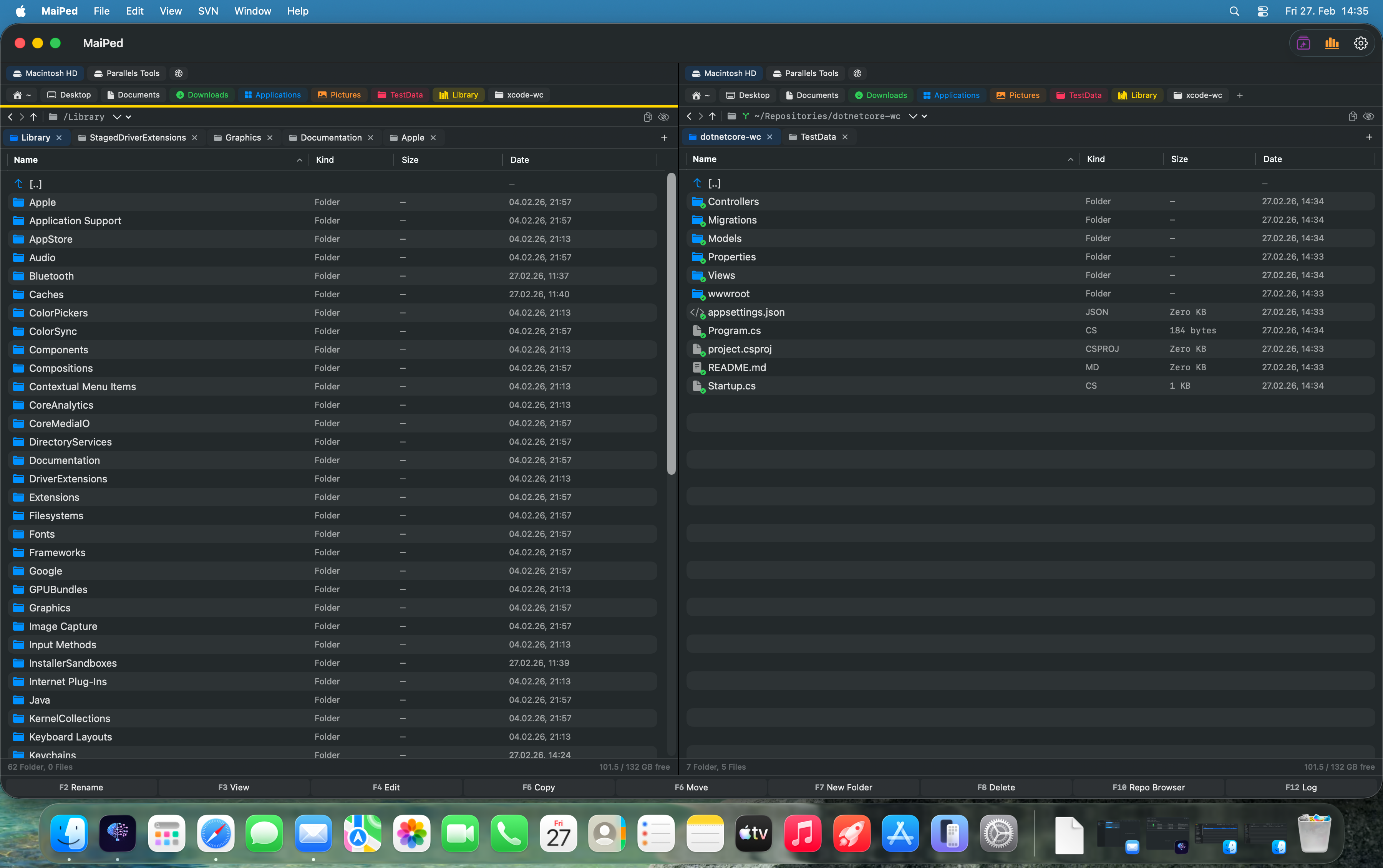
MaiPed Commander zeigt ein .NET-Projekt im Dual-Pane-Layout mit SVN-Statusanzeige

Die Lücke im macOS-Ökosystem für .NET+SVN-Entwickler

Auf dem Mac angekommen, stellt man fest: Die einzelnen Puzzleteile existieren, aber sie passen nicht zusammen.

IDEs ohne SVN-Integration

JetBrains Rider ist eine hervorragende .NET-IDE für macOS – aber die SVN-Unterstützung ist bestenfalls rudimentär. Commits funktionieren, ja, aber das Erlebnis ist weit entfernt von TortoiseSVN. VS Code mit der C# DevKit Extension bietet noch weniger: SVN-Plugins existieren, sind aber instabil, langsam und werden selten gepflegt. Die Realität ist, dass keines der modernen Entwicklertools auf dem Mac SVN als First-Class-Citizen behandelt.

Kein nativer SVN-GUI-Client

Auf Windows gibt es TortoiseSVN – kostenlos, stabil, seit über 20 Jahren gepflegt. Auf macOS? SmartSVN funktioniert, sieht aber aus wie eine Java-Anwendung aus 2008 und fühlt sich auch so an. Versions wurde jahrelang nicht aktualisiert. Cornerstone ist de facto aufgegeben. Es gibt schlicht keinen nativen, modernen SVN-Client für macOS, der mit TortoiseSVN mithalten kann.

Der Finder ist für Entwickler unbrauchbar

Apples Finder ist ein schöner, einfacher Dateimanager für Endanwender. Für Entwickler ist er eine Katastrophe. Keine Dual-Pane-Ansicht. Kein integriertes Terminal. Keine Tabs, die diesen Namen verdienen. Keine SVN-Overlay-Icons. Keine Tastaturkürzel für Massenoperationen. Man kann nicht einmal den vollständigen Pfad einer Datei auf einen Blick sehen, ohne in die Titelleiste zu klicken. Für jemanden, der von Total Commander kommt, fühlt sich der Finder an wie ein Rückschritt um 15 Jahre.

Wie MaiPed jede Lücke füllt

MaiPed wurde genau für dieses Problem entwickelt: ein nativer macOS-Dateimanager, der die Werkzeuge vereint, die Entwickler – insbesondere .NET-Entwickler mit SVN – täglich brauchen.

Dual-Pane Commander ersetzt Total Commander

Der MaiPed Commander ist ein vollwertiger Dual-Pane-Dateimanager, nativ in SwiftUI gebaut. Zwei unabhängige Spalten mit eigenen Tabs, eigenem Verlauf und eigener Navigation. Farbige Favoriten für schnellen Zugriff auf Projektordner. Batch-Operationen für Kopieren, Verschieben und Löschen. Ordnervergleiche zwischen linker und rechter Spalte. Und das alles mit Tastaturkürzeln, die Power-Usern sofort vertraut sind: Cmd+T für neue Tabs, Cmd+F für die Suche, Tab zum Wechseln zwischen den Spalten.

Vollständige SVN-Integration ersetzt TortoiseSVN

MaiPed bietet den kompletten SVN-Workflow direkt im Dateimanager: Commit, Update, Revert, Blame, Diff, Log, Checkout, Cleanup und Conflict Resolution. SVN-Status-Overlays zeigen den Zustand jeder Datei auf einen Blick – genau wie TortoiseSVN es im Windows Explorer tut. Der große Unterschied: Es ist nicht nur ein Shell-Overlay, sondern ein tiefgreifend integriertes System. Das SVN-Binary wird sogar mitgeliefert – keine Homebrew-Installation nötig, keine Terminal-Konfiguration. Installieren und loslegen.
MaiPed SVN Commit C# Files
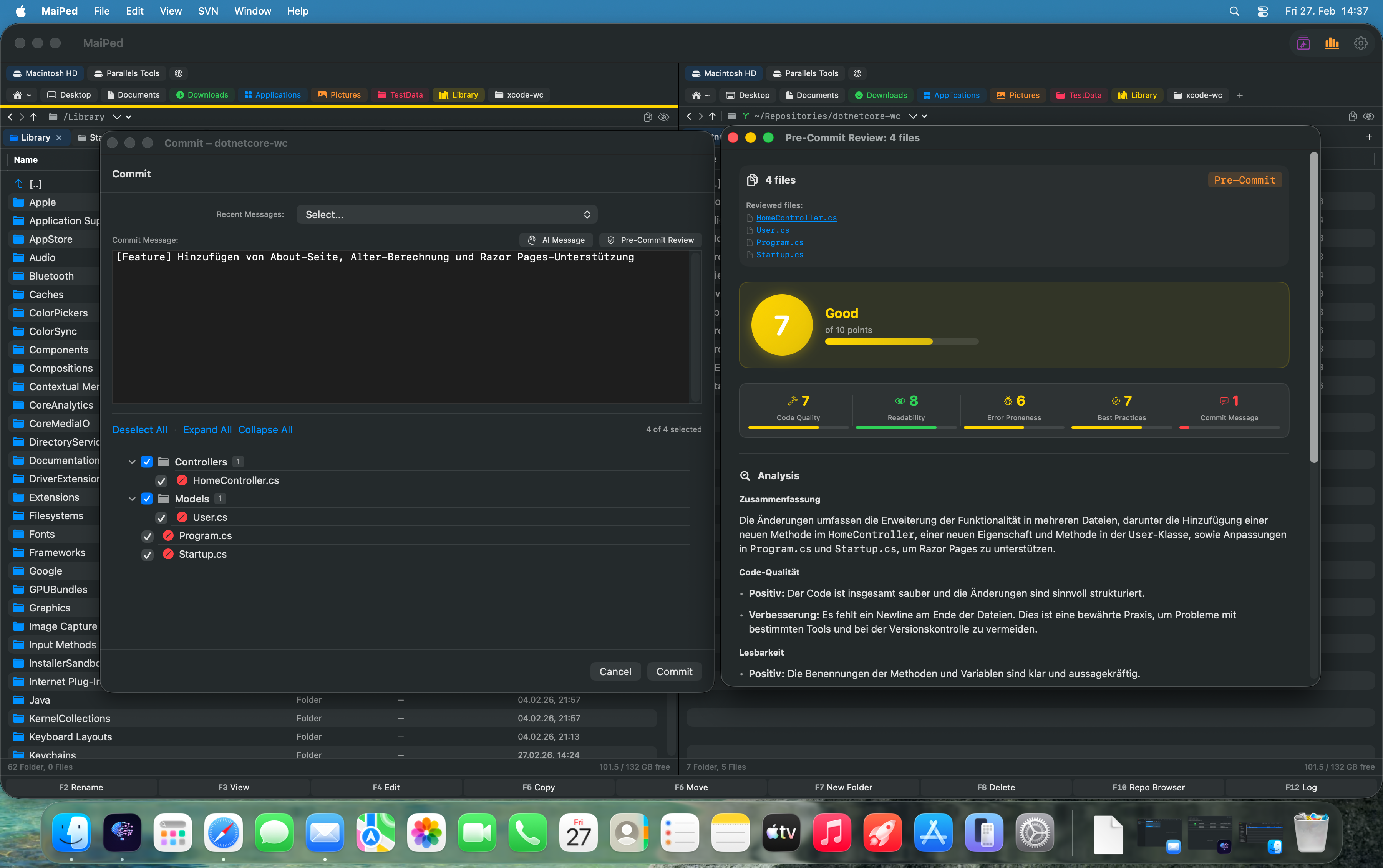
SVN-Commit von C#-Dateien mit automatisch generierter Commit-Nachricht durch die KI

KI-Code-Reviews ersetzen manuelle Review-Prozesse

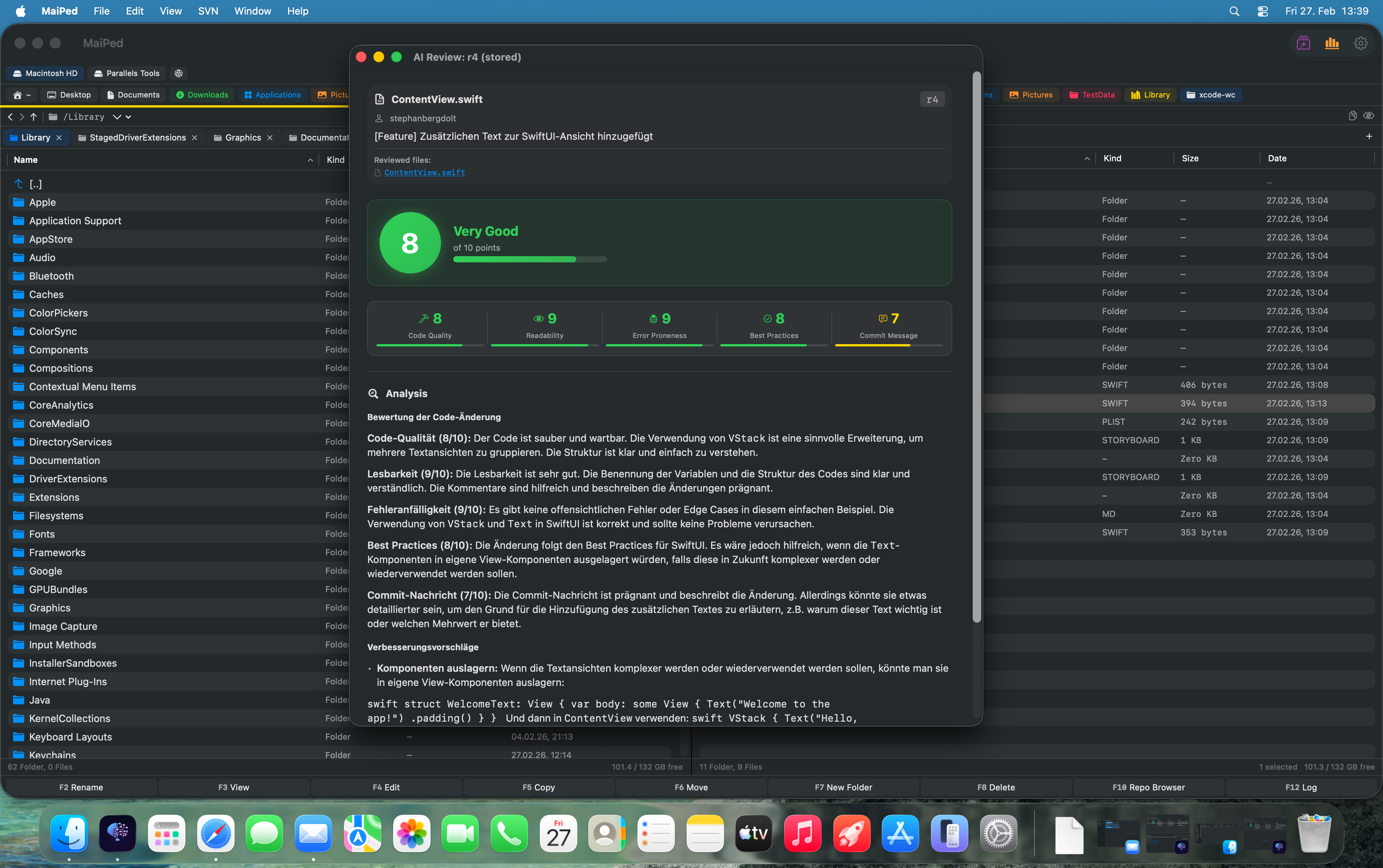
Hier geht MaiPed über das hinaus, was TortoiseSVN je konnte. Vor jedem Commit analysiert die KI die geänderten Dateien und liefert eine detaillierte Bewertung in Kategorien wie Code-Qualität, Fehlerbehandlung, Performance und Dokumentation. Für C#-Code bedeutet das: Die KI erkennt fehlende null-Checks, unbehandelte Exceptions, potenzielle Memory Leaks bei IDisposable-Implementierungen und Verstöße gegen gängige .NET-Konventionen.

Das Besondere: Du kannst wählen, welchen KI-Anbieter du nutzt. OpenAI, Anthropic, Mistral – oder komplett lokal mit Ollama und LM Studio. Gerade für Enterprise-Umgebungen, in denen Code das Unternehmen nicht verlassen darf, ist die lokale Option entscheidend.

Terminal-Integration für die dotnet CLI

MaiPed öffnet ein Terminal direkt im aktuellen Verzeichnis. dotnet build, dotnet test, dotnet publish – alles ist nur einen Klick entfernt, ohne den Kontext zu wechseln. Keine Notwendigkeit, zwischen Finder, Terminal und IDE hin und her zu springen.

FTP für Deployments auf IIS und Azure

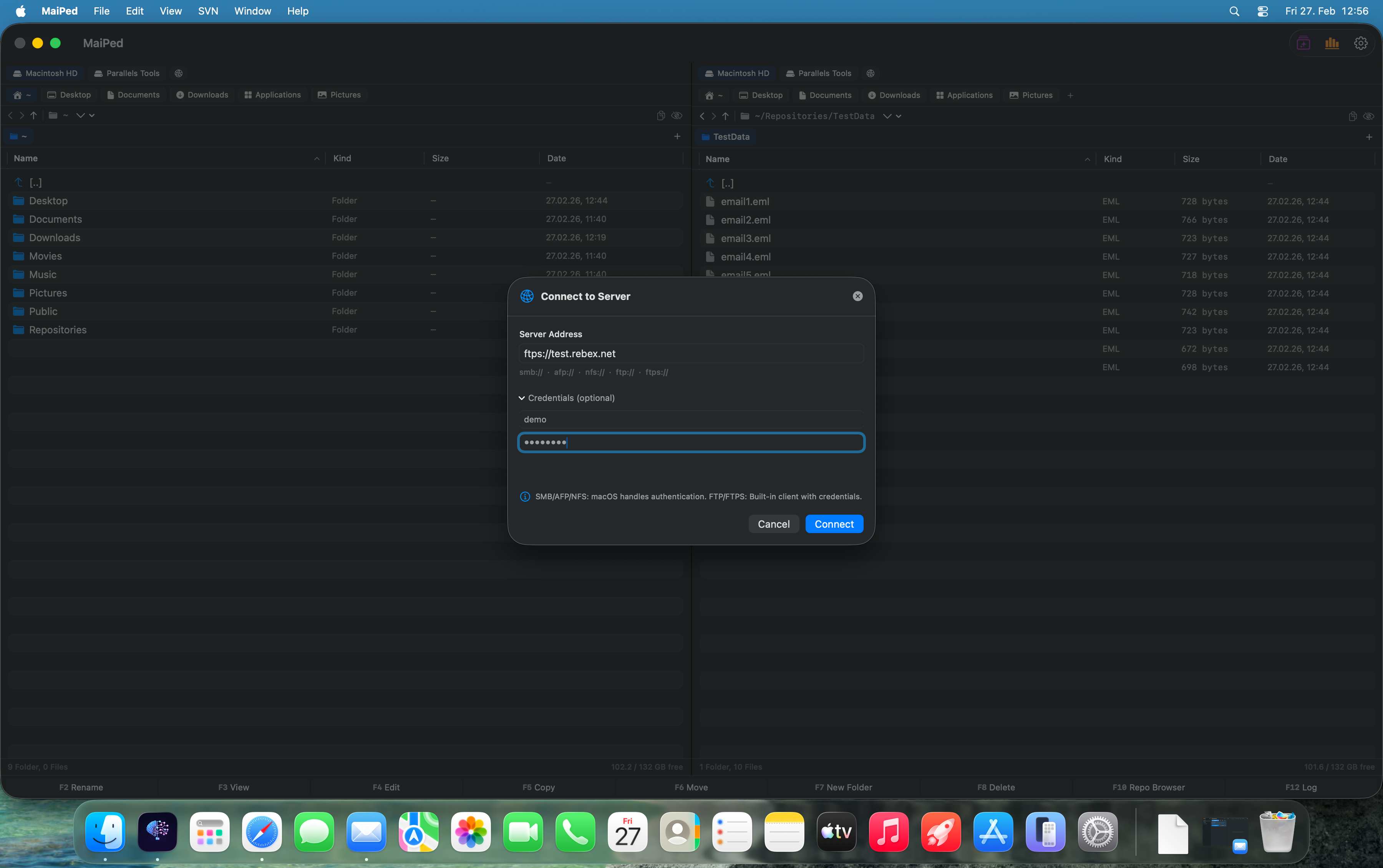
Viele Enterprise-.NET-Anwendungen werden immer noch per FTP/FTPS auf IIS-Server deployed. MaiPed bringt einen integrierten FTP-Client mit, der das Deployment direkt aus dem Dateimanager ermöglicht. Lokale Build-Artefakte links, Remote-Server rechts – Dateien per Drag-and-Drop oder Tastaturkürzel deployen.

Tastaturkürzel für Power-User

MaiPed wurde für Entwickler gebaut, die die Maus als notwendiges Übel betrachten. Jede Operation ist per Tastatur erreichbar. Die Shortcuts folgen macOS-Konventionen, sind aber so gestaltet, dass Total Commander- und Far Manager-Umsteiger sich sofort zurechtfinden.

Windows → Mac: Der Tool-Vergleich

Windows-Tool Mac-Problem MaiPed-Lösung
Total Commander Finder hat kein Dual-Pane Commander mit Tabs & Favoriten
TortoiseSVN Kein nativer SVN-Client Volle SVN-Integration mit Overlays
VisualSVN (VS Plugin) Rider/VS Code SVN mangelhaft SVN direkt im Dateimanager
Explorer + Overlays Finder zeigt keinen SVN-Status Farbige Status-Anzeigen pro Datei
WinSCP (FTP) Kein nativer Dual-Pane-FTP FTP/FTPS in MaiPed integriert
Manuelle Code Reviews Kein Pre-Commit-Review-Tool KI-Reviews vor jedem Commit

Praktischer .NET-Workflow mit MaiPed

Wie sieht ein typischer Arbeitstag für einen .NET-Entwickler aus, der MaiPed als zentrales Werkzeug nutzt? Hier ist ein realistisches Szenario.

1

Projekt öffnen und navigieren

Du öffnest MaiPed und navigierst über deine farbigen Favoriten direkt zum Solution-Ordner deines .NET-Projekts. In der linken Spalte siehst du die src/-Ordnerstruktur, rechts die tests/-Ordner. SVN-Status-Overlays zeigen sofort, welche Dateien seit dem letzten Update geändert wurden. Ein schnelles SVN Update holt die neuesten Änderungen der Kollegen.

2

Entwickeln und Änderungen tracken

Während du in Rider oder VS Code an deinen C#-Dateien arbeitest, bleibt MaiPed im Hintergrund offen. Jede gespeicherte Änderung wird sofort durch SVN-Overlays sichtbar. Geänderte Controller-Dateien, neue Service-Klassen, gelöschte Migrations – alles auf einen Blick. Kein svn status im Terminal nötig.

3

KI-gestütztes Pre-Commit-Review

Bevor du committest, lässt du MaiPed ein KI-Code-Review durchführen. Die KI analysiert deine geänderten .cs-Dateien und gibt dir eine Bewertung: „Der neue OrderService behandelt null-Fälle korrekt, aber die Exception im PaymentHandler sollte geloggt werden. Score: 7.8/10.“ Du korrigierst den Fehler, bevor er überhaupt ins Repository gelangt.

4

Commit mit auto-generierter Nachricht

Du öffnest den Commit-Dialog, und MaiPed hat bereits eine sinnvolle Commit-Nachricht aus den Diffs generiert: „Add OrderService with validation logic, fix exception handling in PaymentHandler“. Du passt sie bei Bedarf an und committest – direkt aus dem Dateimanager, ohne ein einziges Terminal-Fenster zu öffnen.

5

StacyAI für wiederkehrende Aufgaben nutzen

Dein Projekt braucht neue Unit-Test-Dateien für die hinzugefügten Services? Sag StacyAI einfach: „Erstelle für jeden Service im linken Ordner eine Test-Datei im rechten Ordner.“ Oder: „Benenne alle appsettings.*.json Dateien um, sodass der Environment-Name am Anfang steht.“ StacyAI hat über 40 Tools und versteht natürliche Sprache – kein Regex, kein Skripting.

6

Deployment per FTP

Nach dem Build mit dotnet publish öffnest du in der rechten Spalte eine FTP-Verbindung zu deinem Staging-Server. Links der lokale publish/-Ordner, rechts der IIS-Server. Geänderte Dateien markieren, F5 drücken, fertig. Kein FileZilla, kein WinSCP – alles in einem Fenster.
MaiPed AI Code Review C#
KI-gestütztes Code-Review einer C#-Datei mit detaillierten Kategorie-Bewertungen

Tipps für .NET-Entwickler beim Mac-Umstieg

Der Wechsel von Windows zu macOS ist mehr als nur ein Betriebssystemwechsel. Hier sind bewährte Tipps, die den Übergang erleichtern.

Tastaturkürzel umlernen

Cmd statt Ctrl ist der größte Muskelgedächtnis-Schock. Gib dir zwei Wochen – danach ist es Natur. Cmd+Space (Spotlight) ersetzt die Windows-Taste zum Suchen.

💻

dotnet CLI meistern

Auf dem Mac ist die CLI dein bester Freund. dotnet new, dotnet build, dotnet test, dotnet ef – alles funktioniert identisch zu Windows. Investiere Zeit in CLI-Kompetenz.

🔨

Rider statt Visual Studio

Visual Studio für Mac wurde eingestellt. JetBrains Rider ist der beste Ersatz: schneller, stabiler und mit erstklassiger C#-Unterstützung. VS Code mit C# DevKit ist die kostenlose Alternative.

📦

Homebrew einrichten

Homebrew ist der Paketmanager, den macOS fehlt. brew install ersetzt Chocolatey und winget. Aber für SVN brauchst du Homebrew nicht – MaiPed liefert es mit.

🌐

Docker Desktop nutzen

SQL Server läuft nicht nativ auf macOS, aber im Docker-Container ist er in 30 Sekunden bereit. Gleiches gilt für Redis, RabbitMQ und andere Infrastruktur-Services.

🔒

Dateisystem verstehen

macOS nutzt APFS, das case-insensitive aber case-preserving ist – ähnlich wie NTFS. Aber Vorsicht: Linux-Server sind case-sensitive. Achte bei using-Statements auf korrekte Groß-/Kleinschreibung.
MaiPed FTP Deployment
FTP-Deployment: Lokale Build-Artefakte direkt auf den Server übertragen

Fazit: Der Mac ist bereit für .NET – und MaiPed macht ihn komplett

Der Wechsel von Windows zu macOS als .NET-Entwickler war noch nie so realistisch wie heute. Die Laufzeitumgebung ist plattformunabhängig, die IDEs sind hervorragend, und die Hardware ist überlegen. Was bisher fehlte, war das Bindeglied: ein Werkzeug, das die vertrauten Workflows von Total Commander, TortoiseSVN und integrierter Quellcodeverwaltung auf den Mac bringt.

MaiPed ist dieses Bindeglied. Nativ für macOS gebaut, mit vollständiger SVN-Integration, KI-gestützten Code-Reviews, FTP-Deployment und einem Dual-Pane-Commander, der sich für jeden Total Commander-Veteranen wie Zuhause anfühlt. Keine Electron-App, keine Java-Oberfläche, keine halbherzige Portierung – eine echte Mac-App für echte Entwickler.

Wenn du den Sprung von Windows zu Mac als .NET-Entwickler planst oder bereits gewagt hast: MaiPed gibt dir die Werkzeuge zurück, die du vermisst – und fügt mit der KI etwas hinzu, das du noch gar nicht kanntest.

.NET & macOS

Switch from Windows to Mac as a .NET Developer

The Trend is Unstoppable: .NET Runs on the Mac

Since Microsoft made the leap to a truly cross-platform runtime with .NET 5, the world has changed fundamentally for C# developers. With .NET 6, 7, 8, and now .NET 9, the cross-platform story is no longer just a marketing promise – it is reality. ASP.NET Core Web APIs run on Linux containers in production, MAUI promises native UIs across all platforms, and dotnet build works just as reliably in the macOS terminal as it does in Windows PowerShell.

At the same time, Apple has started a hardware revolution with its M-series chips that is making many developers rethink their platform choice. The combination of outstanding battery life, whisper-quiet operation, and a first-class Unix foundation makes the Mac the top choice for an increasing number of software developers – including those who spent years exclusively in the Windows world. Rider and VS Code offer excellent C# support, the dotnet CLI is a first-class citizen on macOS, and Docker Desktop makes container-based development effortless.

But those who take the plunge quickly discover: The code runs on the Mac. But your familiar workflow? That does not.

What .NET Developers Leave Behind on Windows

As a .NET developer on Windows, you have built an ecosystem over the years that extends far beyond the IDE. It is the tools surrounding the code that shape your daily workflow. And it is precisely these tools that are painfully absent on the Mac.

Total Commander and Far Manager

Anyone who has ever worked with Total Commander knows: Windows Explorer is useless for developers. Dual-pane navigation, batch renaming, folder comparisons, FTP integration, browsing archives directly – Total Commander is the first program many .NET developers open after booting up. Navigating solution folders, comparing build artifacts, syncing configuration files between staging and production – all of this takes seconds with two panes side by side.

Far Manager offers similar power for console enthusiasts. Both tools share one thing in common: they treat files as what they are for developers – not pretty icons, but working material that needs to be managed efficiently.

TortoiseSVN – The Unsung Hero of Enterprise .NET

This is where the transition becomes particularly painful for many switchers. While the startup world has long moved to Git and GitHub, the reality in many enterprises looks quite different. Enterprise .NET shops – banks, insurance companies, government agencies, industrial corporations – frequently still work with Subversion. The reasons are understandable: established infrastructure, granular path-level access control, centralized repository management, and compliance requirements.

TortoiseSVN is the indispensable tool for these teams on Windows. It integrates seamlessly into Windows Explorer: colored overlay icons show the status of every file, a right-click provides access to Commit, Update, Diff, and Log. You can see immediately which files have been modified without opening a single application. For .NET developers who commit dozens of C# files daily, this visual feedback is invaluable.

Visual Studio with Integrated Source Control

Visual Studio for Windows offered integrated SVN support through plugins like VisualSVN or AnkhSVN. The Pending Changes panel showed modified files, diffs were one click away, and the commit dialog was available directly within the IDE. This tight integration between IDE and version control is almost entirely absent on the Mac.

MaiPed Commander .NET Project
MaiPed Commander showing a .NET project in dual-pane layout with SVN status indicators

The macOS Ecosystem Gap for .NET+SVN Developers

Once you arrive on the Mac, you discover: the individual puzzle pieces exist, but they do not fit together.

IDEs Without SVN Integration

JetBrains Rider is an excellent .NET IDE for macOS – but SVN support is rudimentary at best. Commits work, yes, but the experience is far removed from TortoiseSVN. VS Code with the C# DevKit extension offers even less: SVN plugins exist but are unstable, slow, and rarely maintained. The reality is that none of the modern developer tools on the Mac treat SVN as a first-class citizen.

No Native SVN GUI Client

On Windows there is TortoiseSVN – free, stable, maintained for over 20 years. On macOS? SmartSVN works but looks and feels like a Java application from 2008. Versions has not been updated in years. Cornerstone is effectively abandoned. There is simply no native, modern SVN client for macOS that can compete with TortoiseSVN.

Finder is Useless for Developers

Apple's Finder is a beautiful, simple file manager for end users. For developers, it is a disaster. No dual-pane view. No integrated terminal. No tabs worthy of the name. No SVN overlay icons. No keyboard shortcuts for bulk operations. You cannot even see the full path of a file at a glance without clicking the title bar. For someone coming from Total Commander, the Finder feels like going back 15 years.

How MaiPed Fills Every Gap

MaiPed was built for exactly this problem: a native macOS file manager that unites the tools developers – particularly .NET developers working with SVN – need every day.

Dual-Pane Commander Replaces Total Commander

The MaiPed Commander is a full-featured dual-pane file manager built natively in SwiftUI. Two independent panes with their own tabs, their own history, and their own navigation. Colored favorites for quick access to project folders. Batch operations for copying, moving, and deleting. Folder comparisons between left and right panes. And all of this with keyboard shortcuts that feel immediately familiar to power users: Cmd+T for new tabs, Cmd+F for search, Tab to switch between panes.

Full SVN Integration Replaces TortoiseSVN

MaiPed provides the complete SVN workflow right inside the file manager: Commit, Update, Revert, Blame, Diff, Log, Checkout, Cleanup, and Conflict Resolution. SVN status overlays show the state of every file at a glance – exactly as TortoiseSVN does in Windows Explorer. The major difference: it is not just a shell overlay but a deeply integrated system. The SVN binary is even bundled – no Homebrew installation needed, no terminal configuration. Install and go.

MaiPed SVN Commit C# Files
SVN commit of C# files with AI-generated commit message

AI Code Reviews Replace Manual Review Processes

This is where MaiPed goes beyond what TortoiseSVN could ever do. Before every commit, the AI analyzes the changed files and delivers a detailed assessment in categories like code quality, error handling, performance, and documentation. For C# code, this means: the AI detects missing null checks, unhandled exceptions, potential memory leaks in IDisposable implementations, and violations of common .NET conventions.

The distinctive feature: you choose which AI provider to use. OpenAI, Anthropic, Mistral – or completely local with Ollama and LM Studio. For enterprise environments where code must not leave the company, the local option is decisive.

Terminal Integration for the dotnet CLI

MaiPed opens a terminal directly in the current directory. dotnet build, dotnet test, dotnet publish – everything is just one click away without switching context. No need to jump between Finder, Terminal, and your IDE.

FTP for Deployments to IIS and Azure

Many enterprise .NET applications are still deployed via FTP/FTPS to IIS servers. MaiPed includes an integrated FTP client that enables deployment directly from the file manager. Local build artifacts on the left, remote server on the right – deploy files via drag-and-drop or keyboard shortcuts.

Keyboard Shortcuts for Power Users

MaiPed was built for developers who consider the mouse a necessary evil. Every operation is accessible via keyboard. The shortcuts follow macOS conventions but are designed so that Total Commander and Far Manager veterans feel immediately at home.

Windows → Mac: The Tool Comparison

Windows Tool Mac Problem MaiPed Solution
Total Commander Finder has no dual-pane Commander with tabs & favorites
TortoiseSVN No native SVN client Full SVN integration with overlays
VisualSVN (VS Plugin) Rider/VS Code SVN lacking SVN right in the file manager
Explorer + Overlays Finder shows no SVN status Colored status indicators per file
WinSCP (FTP) No native dual-pane FTP FTP/FTPS integrated in Commander
Manual Code Reviews No pre-commit review tool AI reviews before every commit

Practical .NET Workflow with MaiPed

What does a typical workday look like for a .NET developer using MaiPed as their central tool? Here is a realistic scenario.

1

Open and Navigate the Project

You open MaiPed and navigate via your colored favorites directly to your .NET project's solution folder. In the left pane you see the src/ folder structure, on the right the tests/ folders. SVN status overlays immediately show which files have been modified since the last update. A quick SVN Update pulls the latest changes from your colleagues.

2

Develop and Track Changes

While you work on your C# files in Rider or VS Code, MaiPed stays open in the background. Every saved change is immediately visible through SVN overlays. Modified controller files, new service classes, deleted migrations – everything at a glance. No need to run svn status in the terminal.

3

AI-Powered Pre-Commit Review

Before committing, you let MaiPed run an AI code review. The AI analyzes your modified .cs files and gives you an assessment: "The new OrderService handles null cases correctly, but the exception in PaymentHandler should be logged. Score: 7.8/10." You fix the issue before it even reaches the repository.

4

Commit with Auto-Generated Message

You open the commit dialog, and MaiPed has already generated a meaningful commit message from the diffs: "Add OrderService with validation logic, fix exception handling in PaymentHandler." You adjust it if needed and commit – directly from the file manager, without opening a single terminal window.

5

Use StacyAI for Repetitive Tasks

Your project needs new unit test files for the added services? Just tell StacyAI: "Create a test file in the right pane for each service in the left pane." Or: "Rename all appsettings.*.json files so the environment name comes first." StacyAI has over 40 tools and understands natural language – no regex, no scripting.

6

Deploy via FTP

After building with dotnet publish, you open an FTP connection to your staging server in the right pane. Local publish/ folder on the left, IIS server on the right. Select changed files, press F5, done. No FileZilla, no WinSCP – everything in one window.

MaiPed AI Code Review C#
AI-powered code review of a C# file with detailed category ratings

Tips for .NET Developers Adapting to macOS

Switching from Windows to macOS is more than just changing your operating system. Here are proven tips that make the transition smoother.

Relearn Keyboard Shortcuts

Cmd instead of Ctrl is the biggest muscle memory shock. Give yourself two weeks – after that it becomes natural. Cmd+Space (Spotlight) replaces the Windows key for searching.

💻

Master the dotnet CLI

On the Mac, the CLI is your best friend. dotnet new, dotnet build, dotnet test, dotnet ef – everything works identically to Windows. Invest time in CLI proficiency.

🔨

Rider Instead of Visual Studio

Visual Studio for Mac has been discontinued. JetBrains Rider is the best replacement: faster, more stable, and with first-class C# support. VS Code with C# DevKit is the free alternative.

📦

Set Up Homebrew

Homebrew is the package manager that macOS lacks. brew install replaces Chocolatey and winget. But for SVN you do not need Homebrew – MaiPed bundles it for you.

🌐

Use Docker Desktop

SQL Server does not run natively on macOS, but in a Docker container it is ready in 30 seconds. The same goes for Redis, RabbitMQ, and other infrastructure services.

🔒

Understand the File System

macOS uses APFS, which is case-insensitive but case-preserving – similar to NTFS. But beware: Linux servers are case-sensitive. Watch your using statements for correct capitalization.

MaiPed FTP Deployment
FTP Deployment: Transfer local build artifacts directly to the server

Conclusion: The Mac is Ready for .NET – and MaiPed Makes it Complete

Switching from Windows to macOS as a .NET developer has never been more realistic than it is today. The runtime is platform-independent, the IDEs are excellent, and the hardware is superior. What has been missing until now was the connective tissue: a tool that brings the familiar workflows of Total Commander, TortoiseSVN, and integrated source control to the Mac.

MaiPed is that connective tissue. Built natively for macOS, with full SVN integration, AI-powered code reviews, FTP deployment, and a dual-pane commander that feels like home for every Total Commander veteran. No Electron app, no Java interface, no half-hearted port – a genuine Mac app for real developers.

If you are planning the jump from Windows to Mac as a .NET developer, or have already taken it: MaiPed gives you back the tools you miss – and adds something with AI that you did not even know you needed.

Bereit für deinen .NET-Workflow auf dem Mac? Ready for your .NET workflow on the Mac?

MaiPed vereint Dual-Pane-Commander, SVN-Client, KI-Code-Reviews und FTP in einer nativen macOS-App. Gebaut für Entwickler, die von Windows kommen. MaiPed combines dual-pane commander, SVN client, AI code reviews, and FTP in one native macOS app. Built for developers coming from Windows.

MaiPed entdecken Discover MaiPed Alle Funktionen All Features